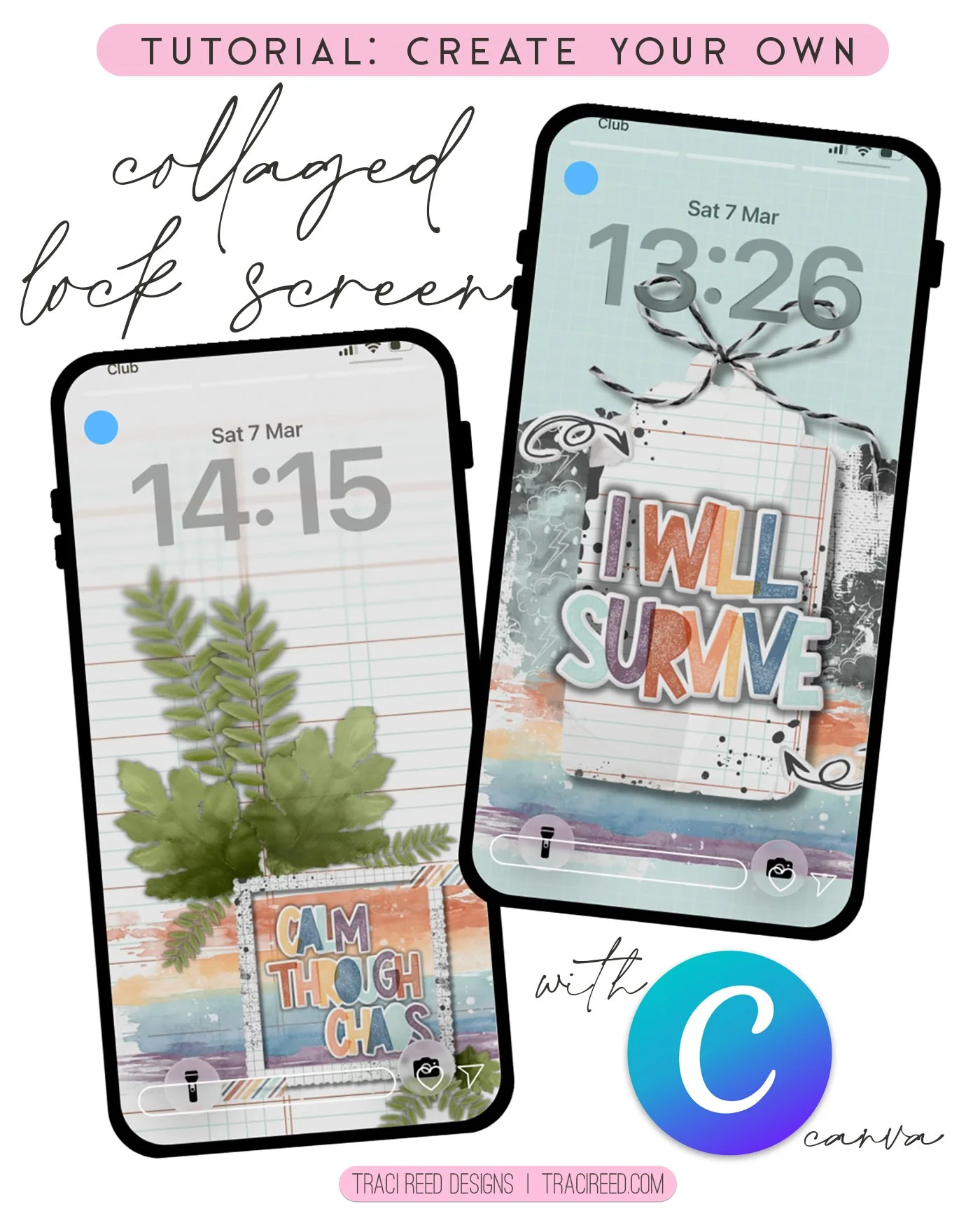
Tutorial: Create Your Own Collaged Lock Screen in Canva!
Hi everyone,
I am super excited to be here on Traci’s blog with something a little different today. I am sharing how easy it is to create your own wallpapers… for your phone and your computer… using TRD products!
I am working with the new Plot Twist collection. The Digital kit has some really motivational quotes that I want to work with so my wallpapers are positive and inspirational!
What You Need:
Canva (free version is perfect for this)
TRD products (I am working with Traveller’s Notebook papers & embellishments from the Digital kit)
Process:
Open Canva (TIP: I prefer to work on my laptop but then download on my phone!)
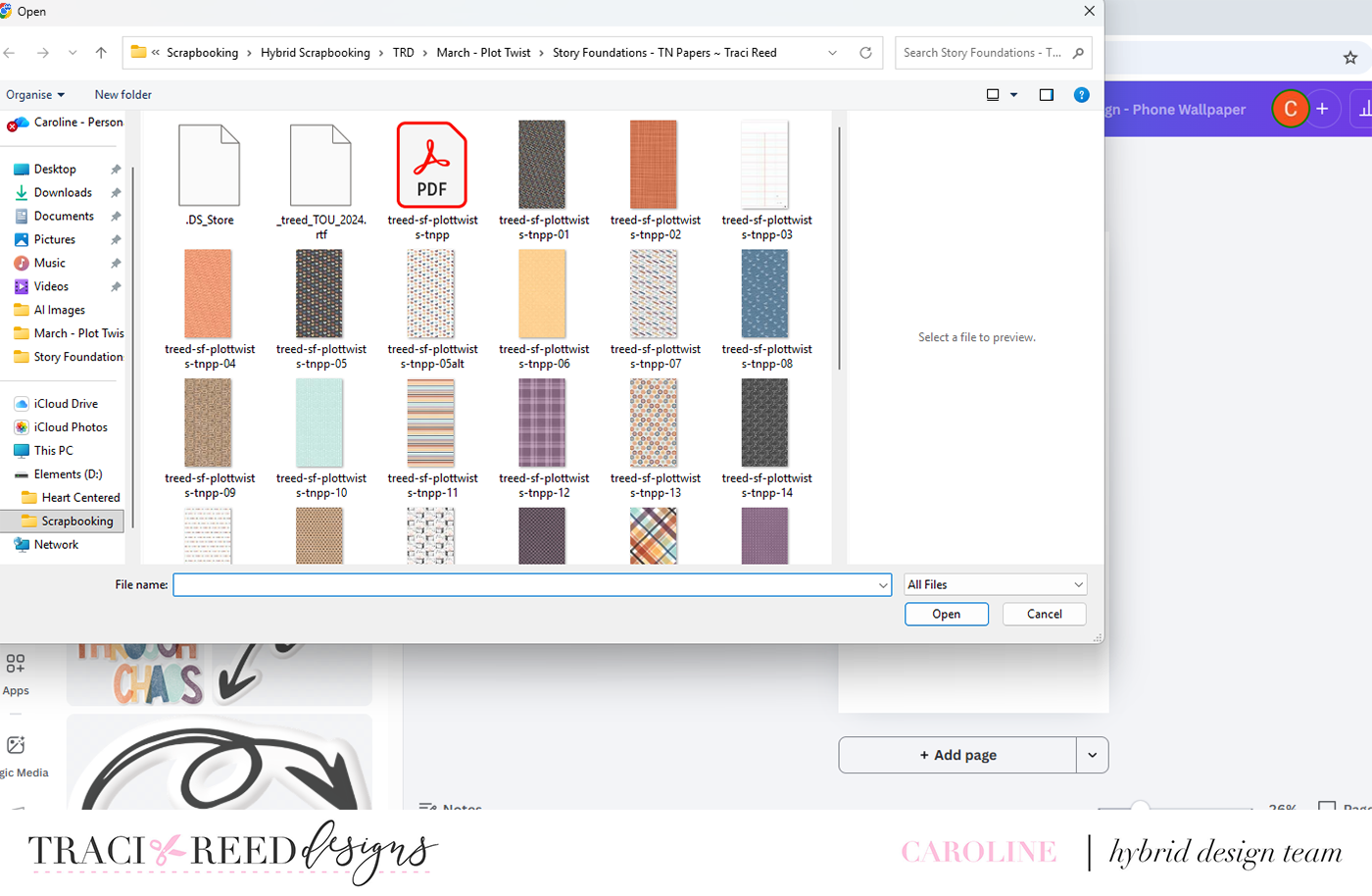
Upload the TRD products you want to play with (I like to do this for multiple files at the start so I can then get creating)
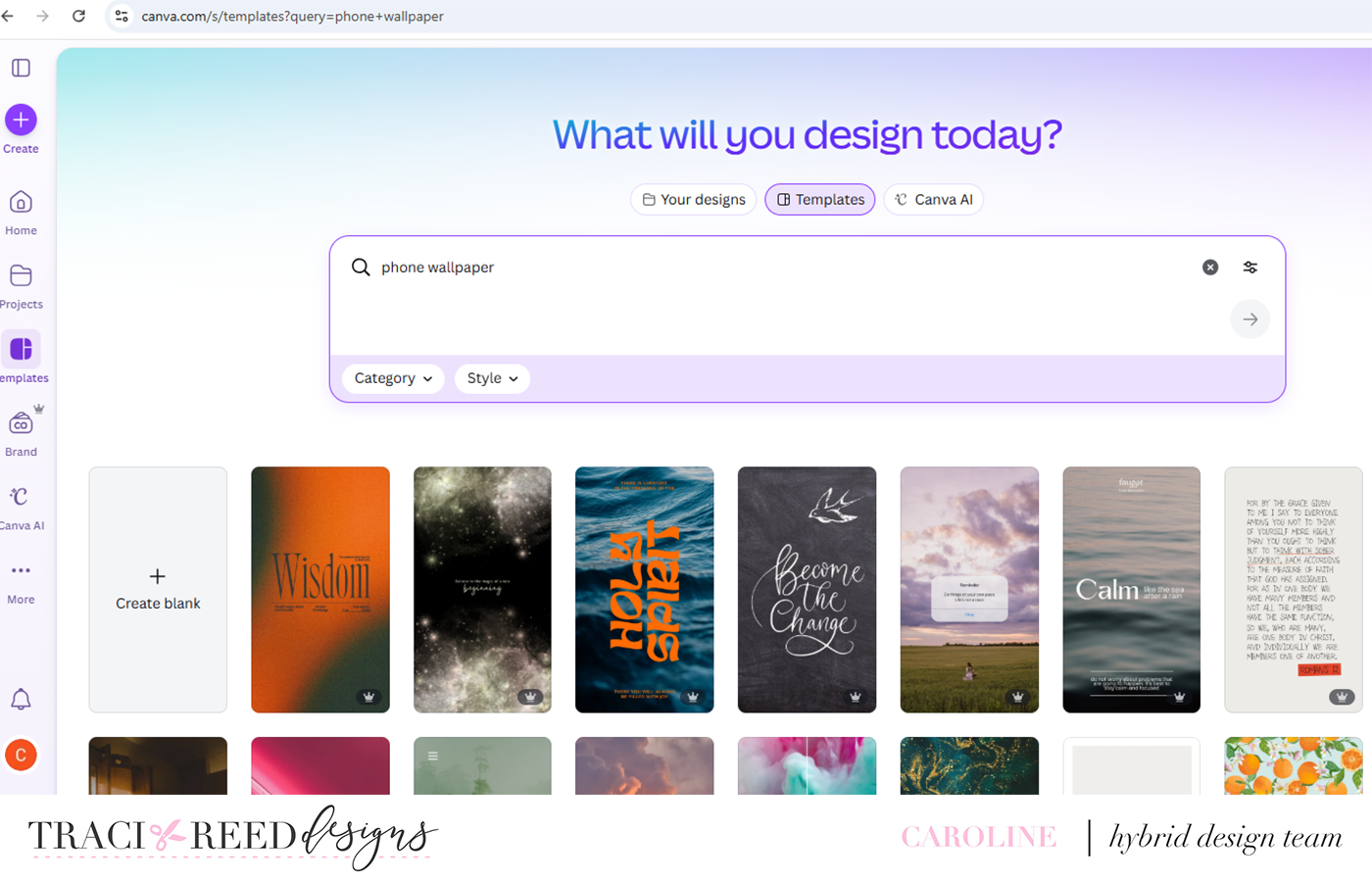
Create canvas (I searched for phone wallpaper and went with a blank file)
4. Create your background (I like to insert a Traveller’s Notebook paper across the whole canvas for my background)
5. Start to add layers by adding elements to the canvas
6. Move things around so that when this is your phone wallpaper it wont interact with any widgets you have on the screen (I know I want my clock to sit top centre so am layering sentiments at the bottom)
7. Adjust the layering (pushing elements backwards and forwards in the Position tab) so that things sit in a complimentary way to your eye
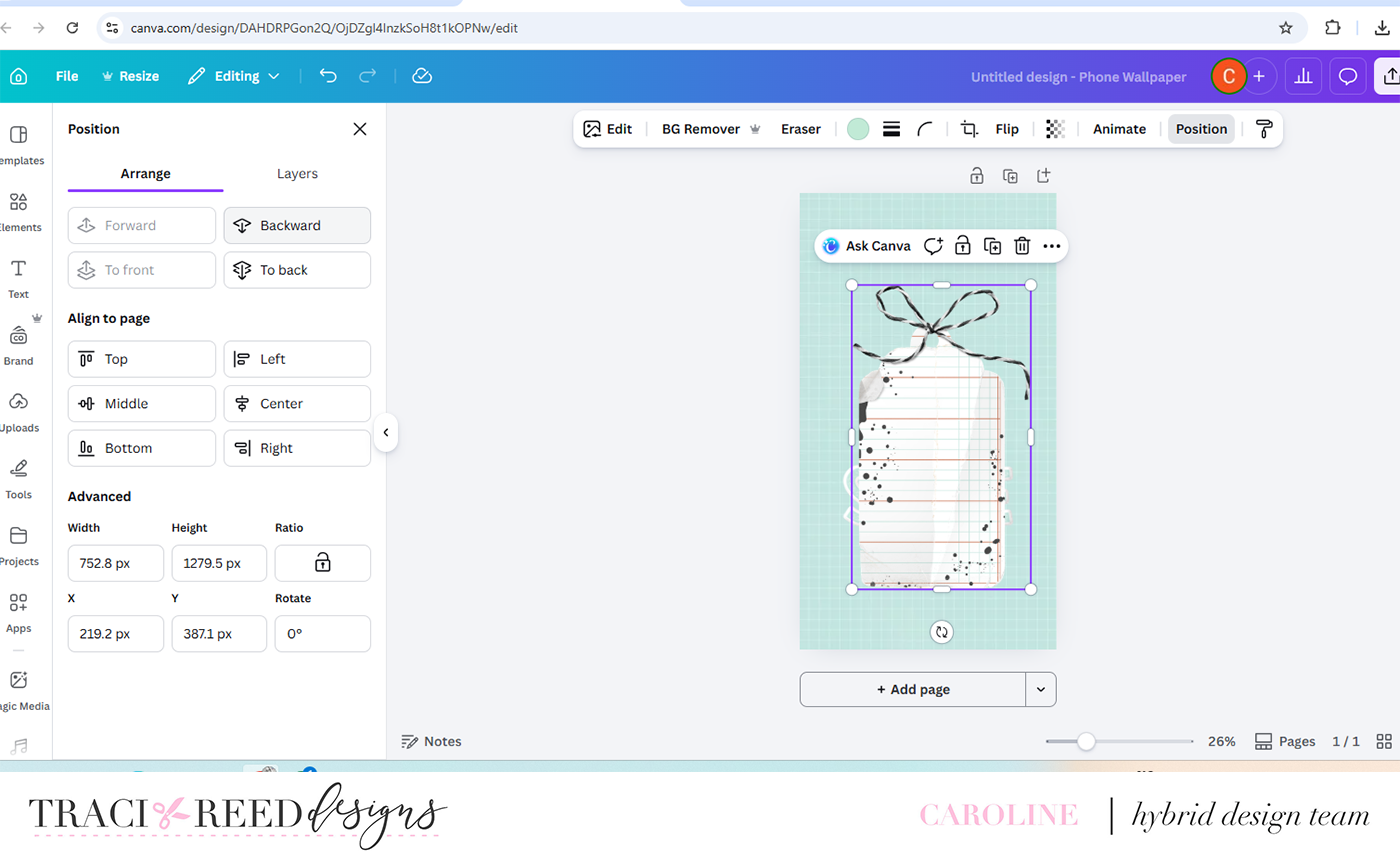
8. Adjust transparency of the elements for added interest and dimension.
9. Add shadows for additional dimension (I like dropshadow and glow)

10. Once you have a design you like download to your phone
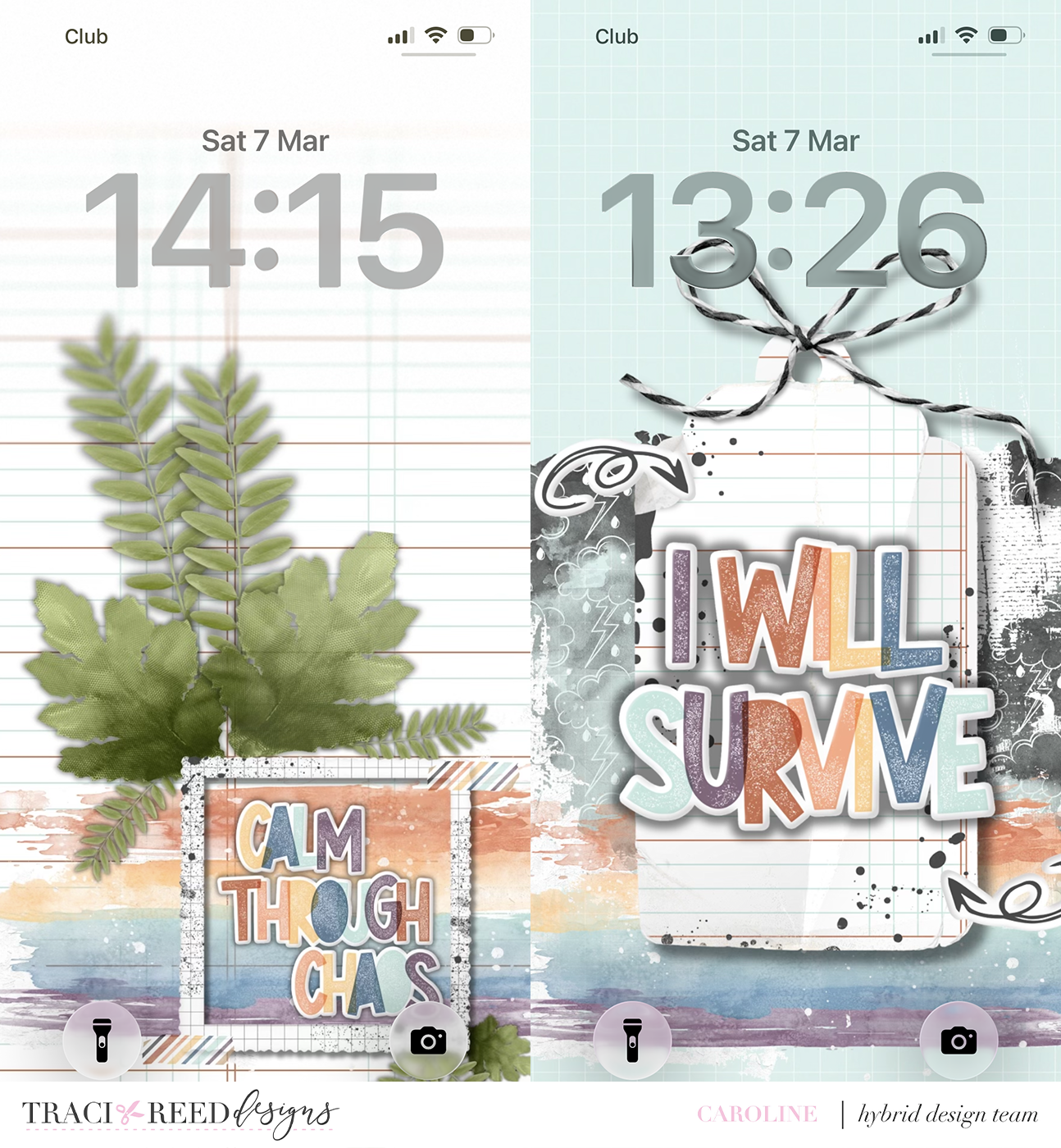
11. Use the image to set up your wallpaper (TIP: remember you are likely to be able to adjust the size of the image so it sits nicely on the screen)
12. Enjoy your creativity each time you pick up your phone!
If you are creating a desktop wall paper you follow the process above with the following exceptions:
search for desktop wallpaper
If you have pro- canva you can choose to resize one of of your phone wallpapers as a desktop version and then tweak the placement around)
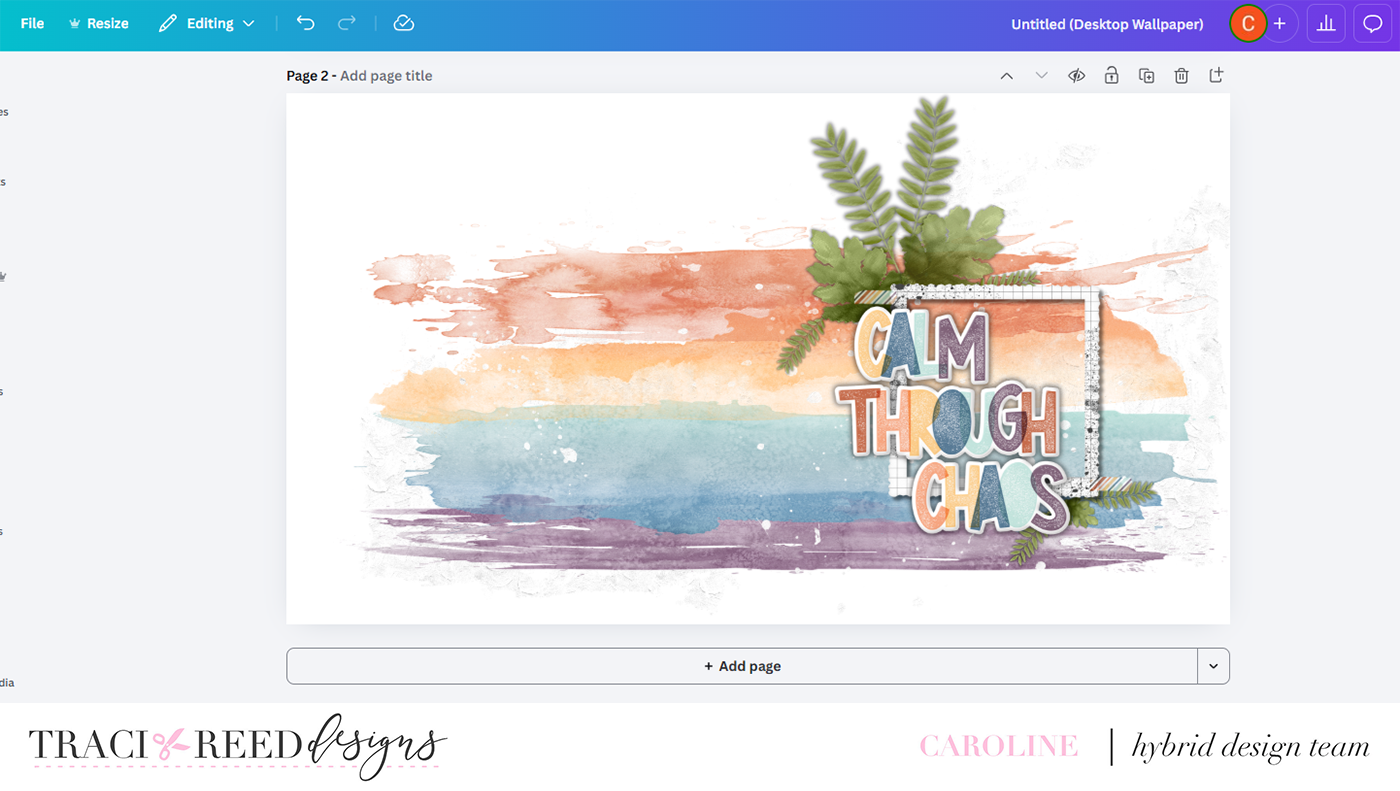
Adjust the location of your focal area to suit how you have your icons set up on your desktop. My icons are over on the left, so I put my focal point over on the right.
TIP: If, like me, you like a very clean background on your computer desktop, opt for no paper but instead use mixed media on a plain background.

I hope you have lots of fun creating your own wallpapers. Traci’s products make it so easy to do!
Bye for now
Caroline x
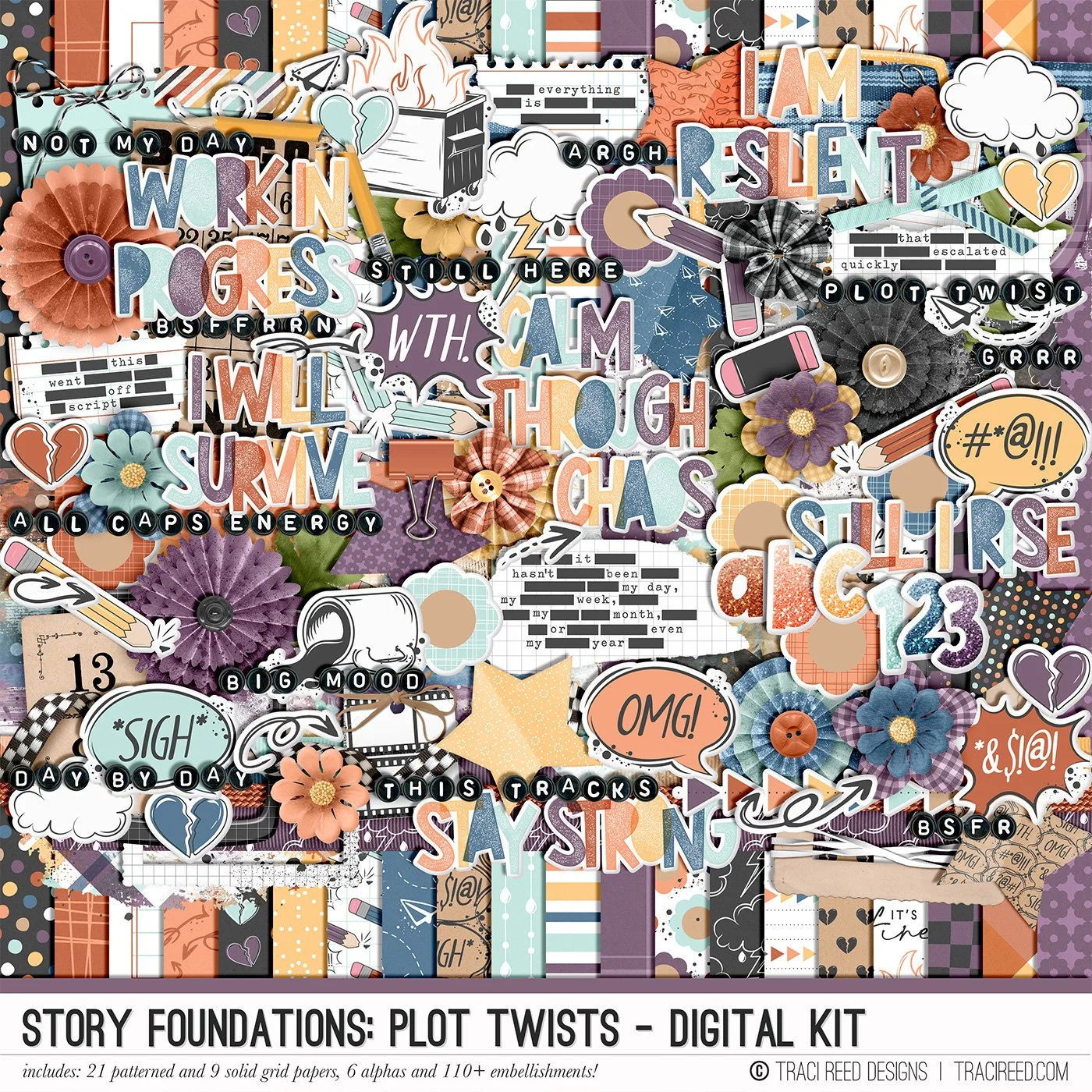
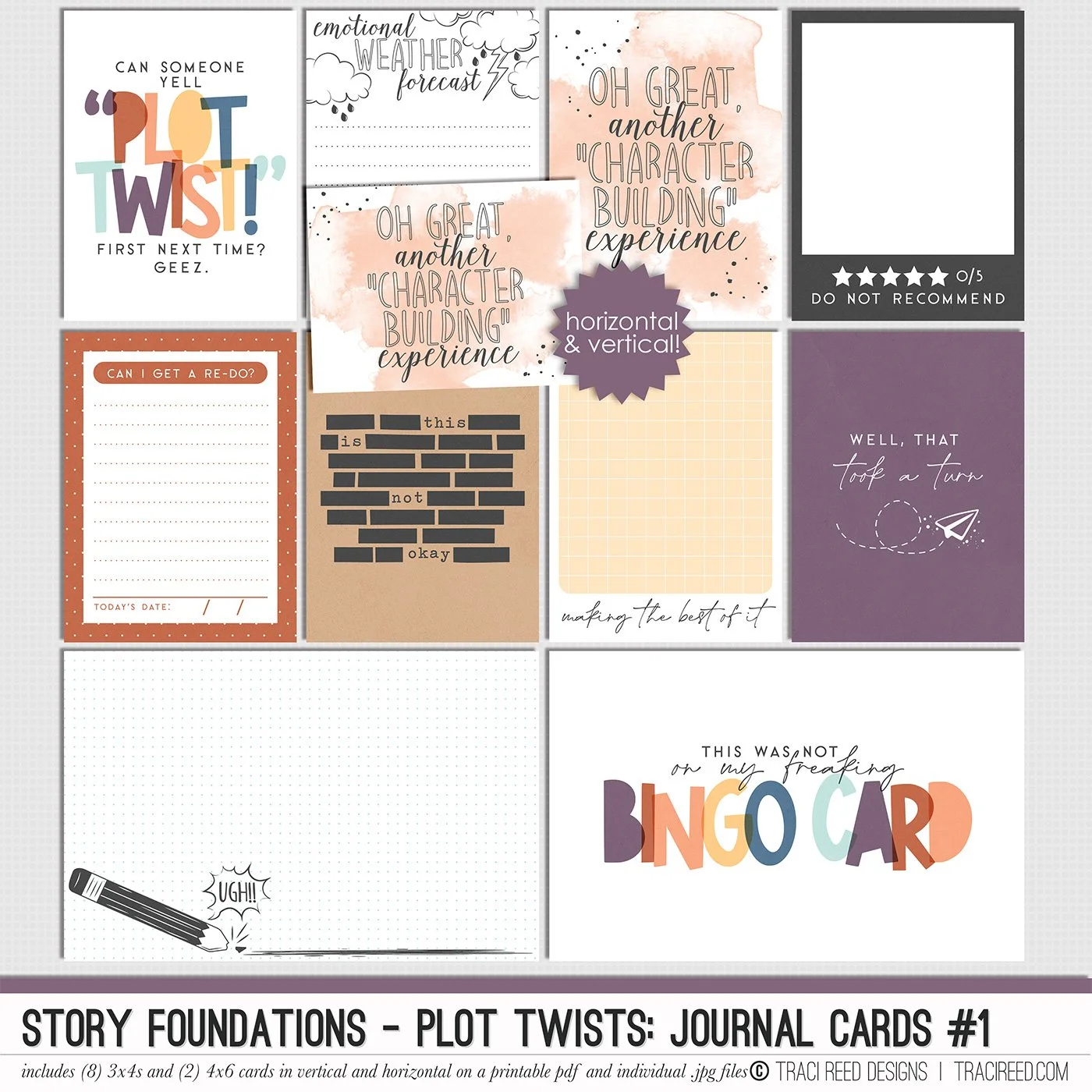
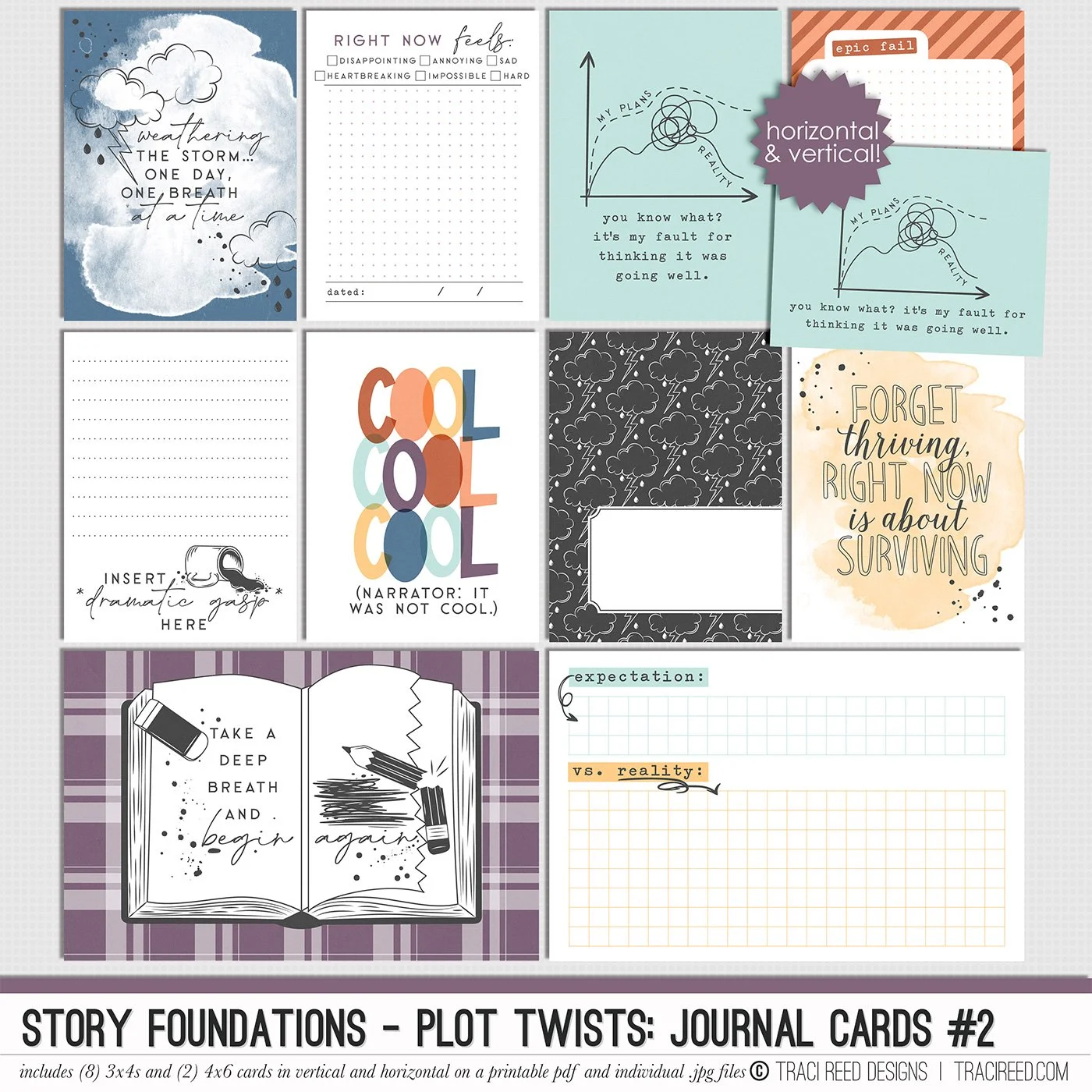
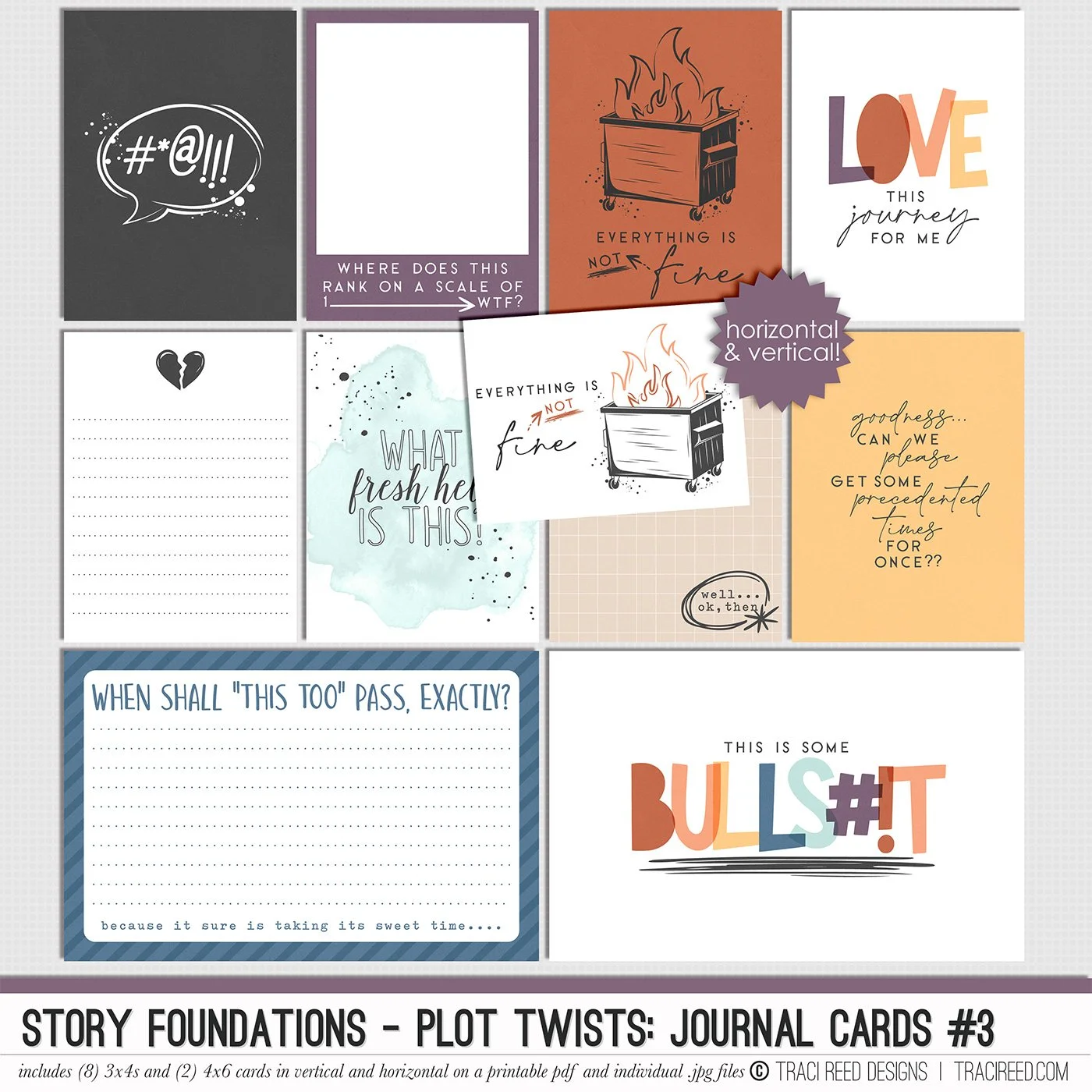
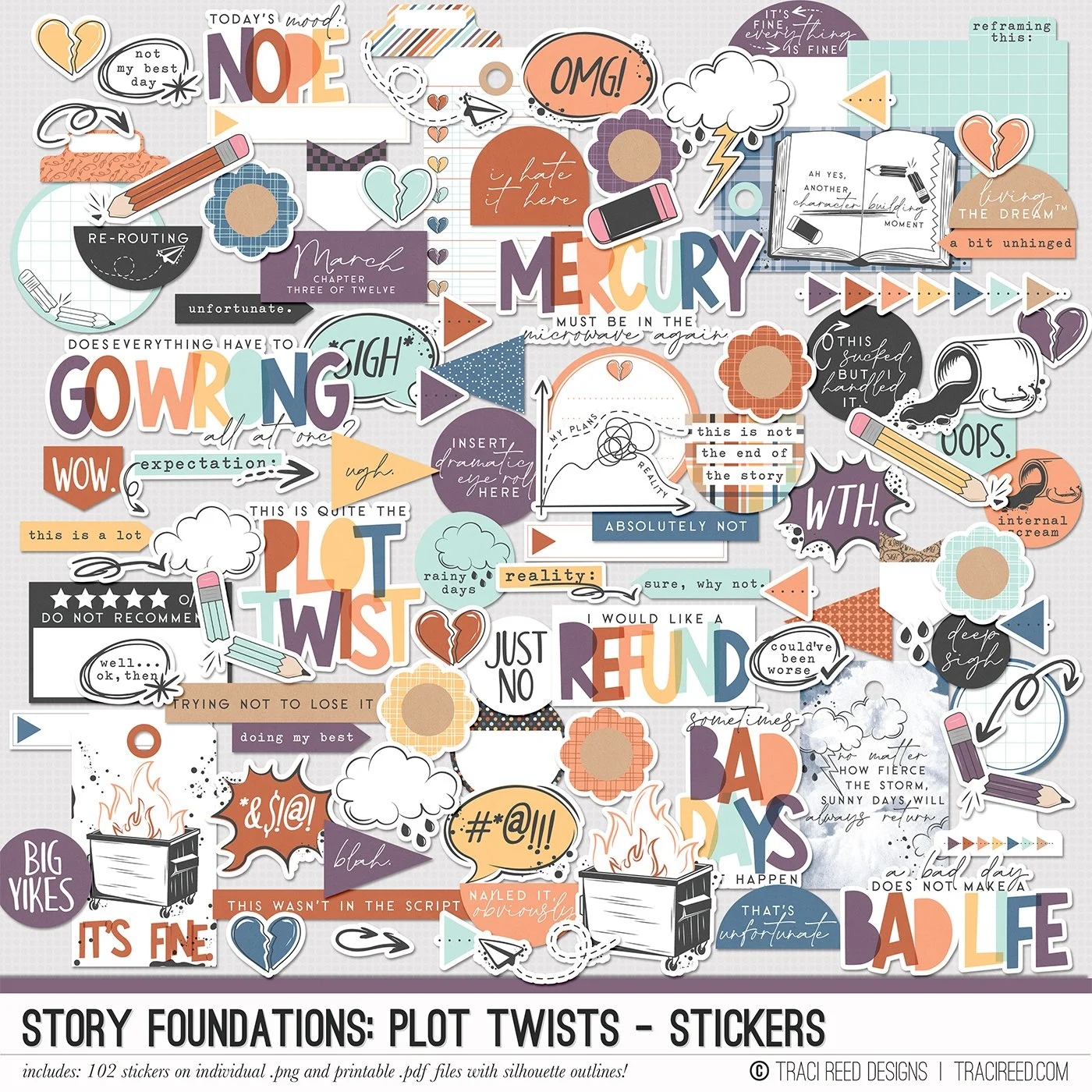
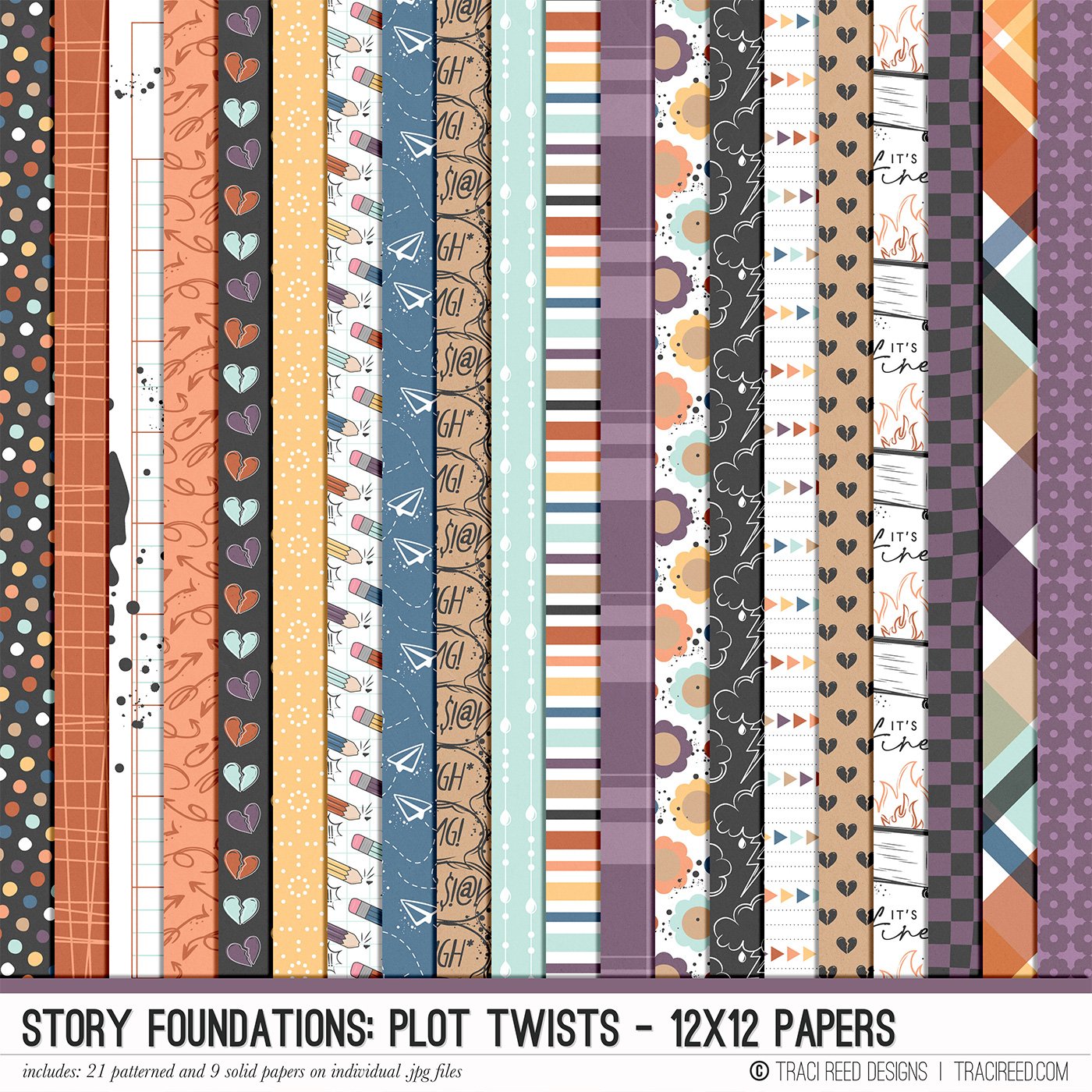
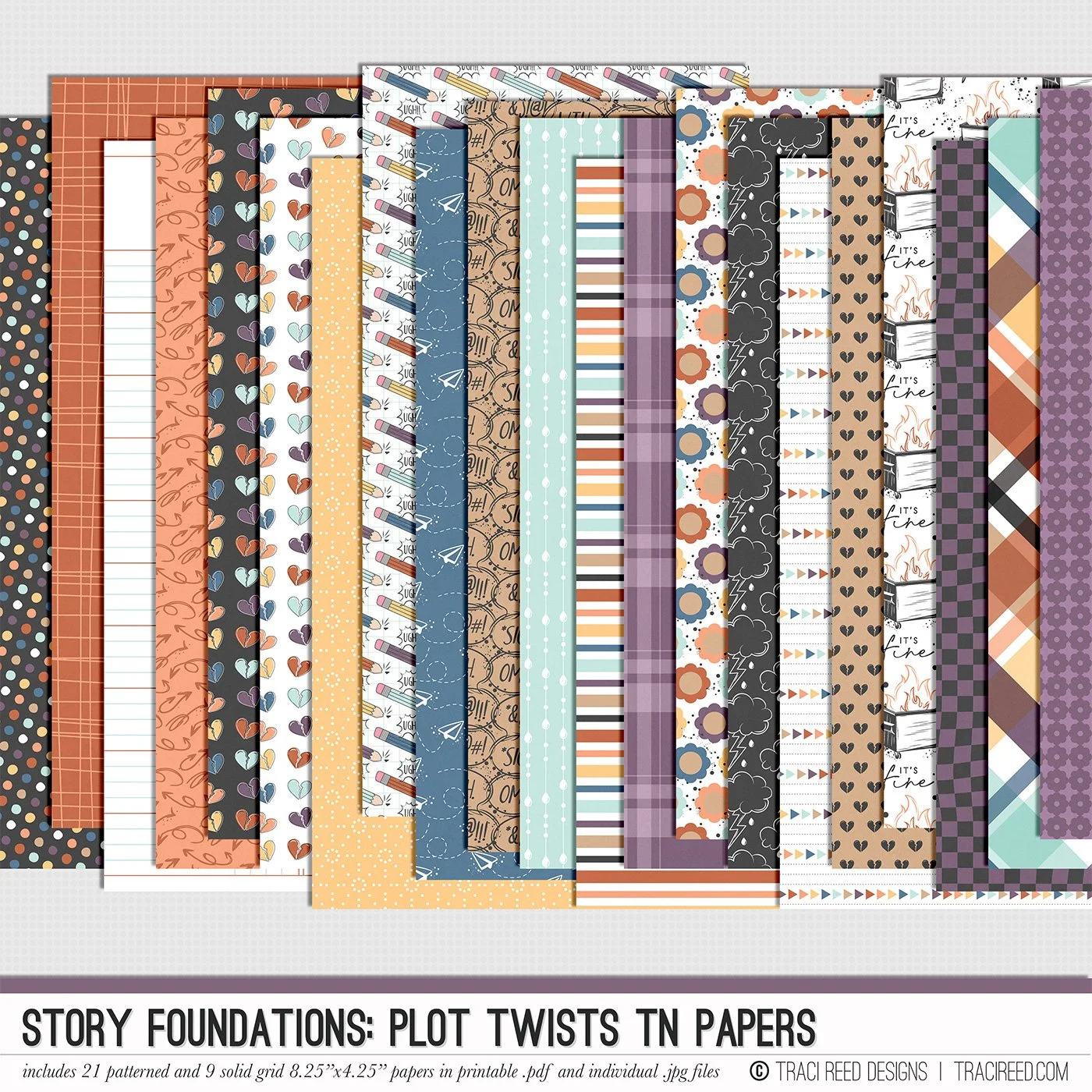
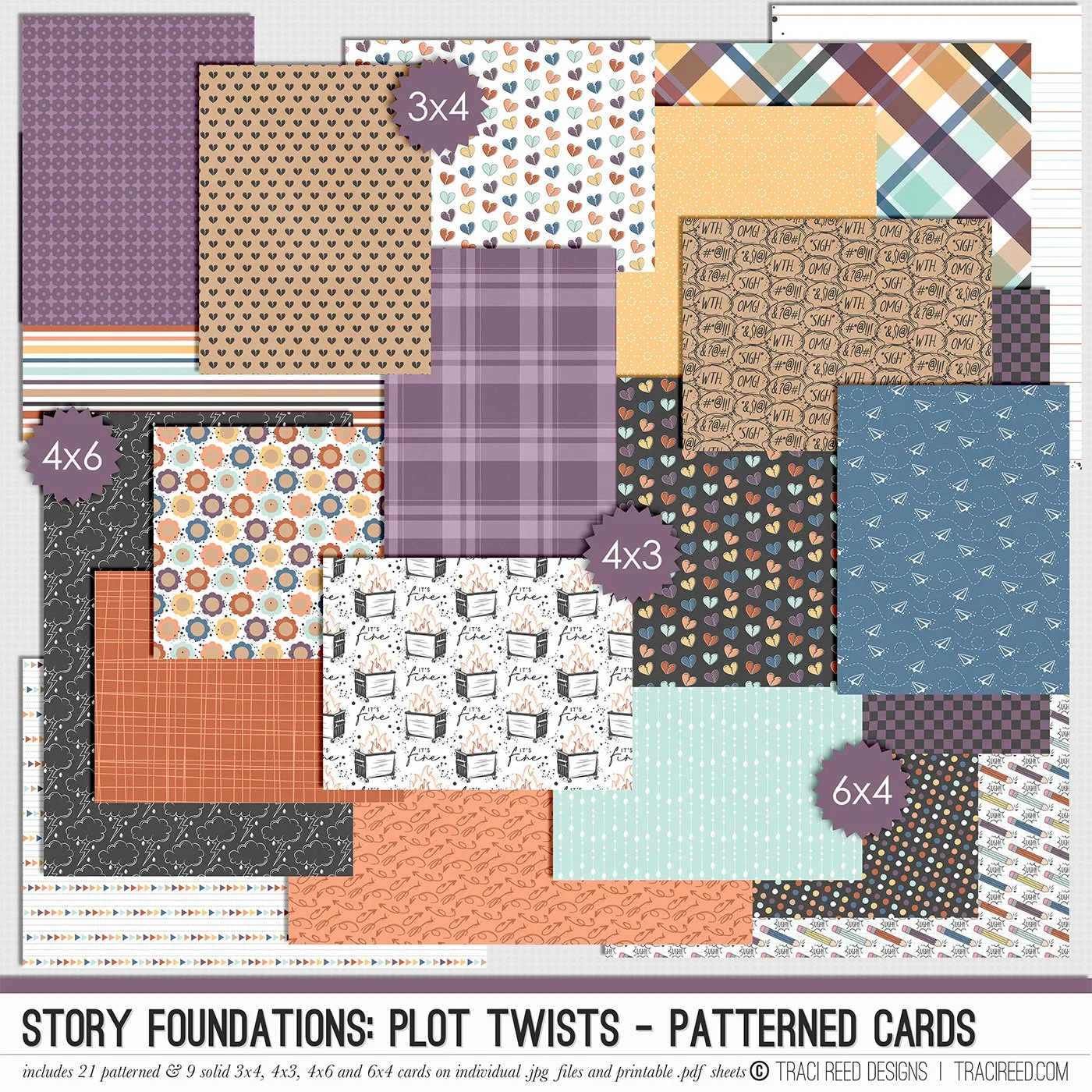
Chapter Three of the Story Foundations collection is all about Plot Twists, because real life rarely sticks to the script. Plans shift. Expectations unravel. Surprises show up unannounced. This collection is designed to help you document the unexpected moments that shape your story in ways you never saw coming.
Plot Twists isn’t just about bad days. It’s about the detours, the rewrites, the second drafts, and the unexpected things that add depth to your narrative. The frustrating moments. The funny ones. The “you won’t believe what happened” stories. The honest pages that make your albums feel real and complete.
Story Foundations: Plot Twists builds naturally on the chapters before it while adding dimension and drama to your year of stories. It gives you permission to document the messy middle, the sharp turns, and the unexpected highs and lows, because those are often the moments that matter most.
See the unboxing and example images for the Story Foundations: Plot Twists collection HERE.
Don’t forget, the entire 2026 Story Foundations Collections are meant to mix and match and pair with each other! You can see all the Story Foundations Chapters HERE.
BUNDLE INCLUDES:
Story Foundations: Plot Twists Digital Kit, Cards 1, 2, &3 + Stickers!
BUNDLE DOES NOT INCLUDE:
Story Foundations: Plot Twists TN Papers or Patterned Cards