Tutorial: Pocket Scrapbooking In Canva with Michele!
**I do have the paid version, but all of these features do work with the free version. The free version does have storage limitations, but it is great to try it before buying!
Step 1: Get your kit into Canva. On the left toolbar, click Projects.

On the right, click the + to create a folder.
I’ve created a folder titled “scrapbooking” that I house all my scrapbook related projects and kits.
In my scrapbooking project folder, I click “add new” on the top right and choose upload folder.
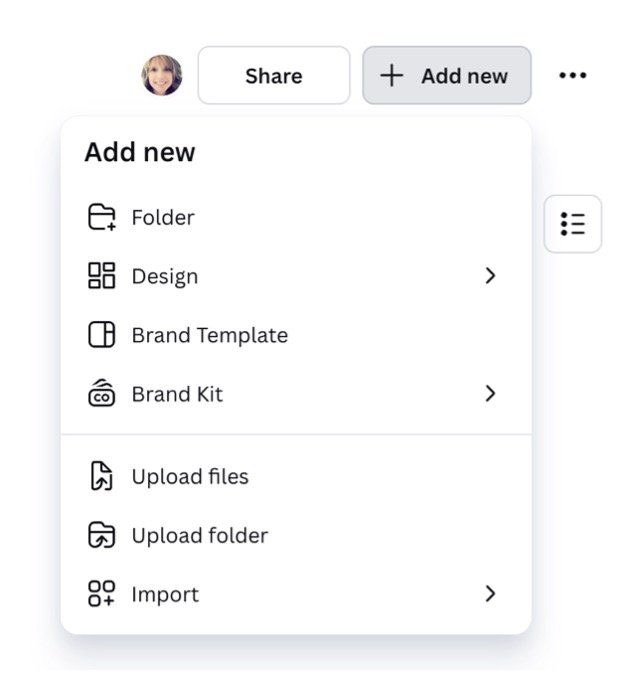
Navigate to where you have downloaded the files from the store. This varies by user and match the way you think of your kits.
You do not need to upload all parts of the kit separately, but you can if you do not want all of the kit in Canva. I upload the whole folder. You will get some upload errors, but just let Canva do that work. If it is a file type that Canva doesn’t support, it won’t upload it.
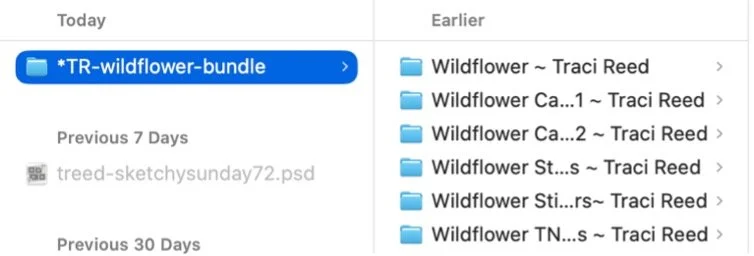
I use a * in my naming system to indicate that I haven’t uploaded it to Canva. This is just a personal preference thing.
I am choosing the whole bundle at once.
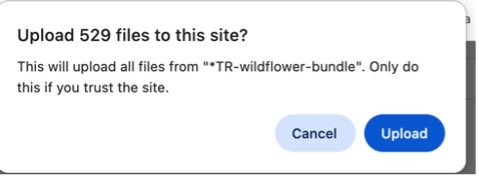
You will get a warning-I click upload.
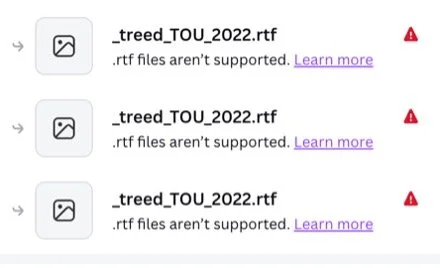
This is a warning that rtf files aren’t supported. I just ignore that.
It takes a bit of time, but all the files will upload to Canva.
The Wildflower bundle matches my labeling system from my computer.
A view as they are uploading.
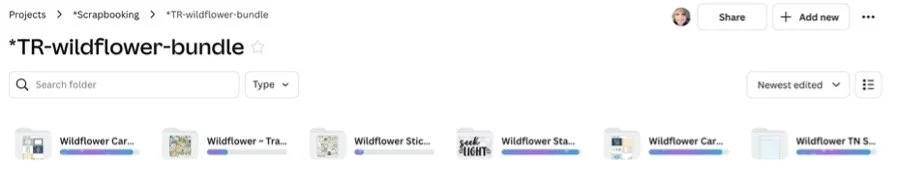
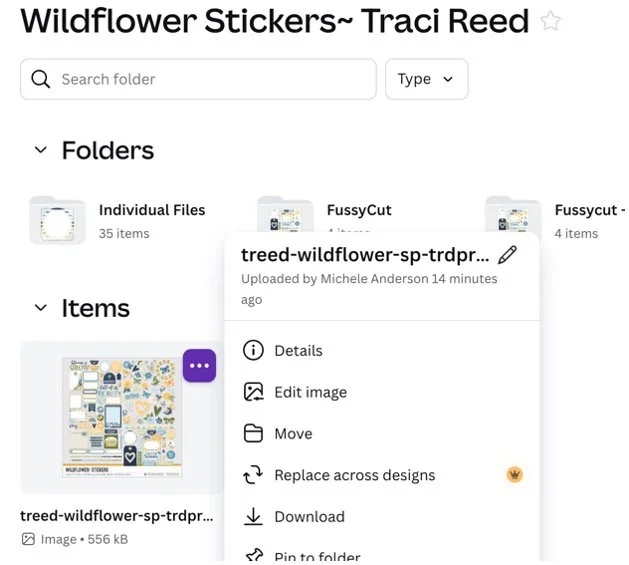
Once uploaded, I like to go into each folder and click “move” on any previews and put them in the main folder so I can see what cards and things are in each collection.
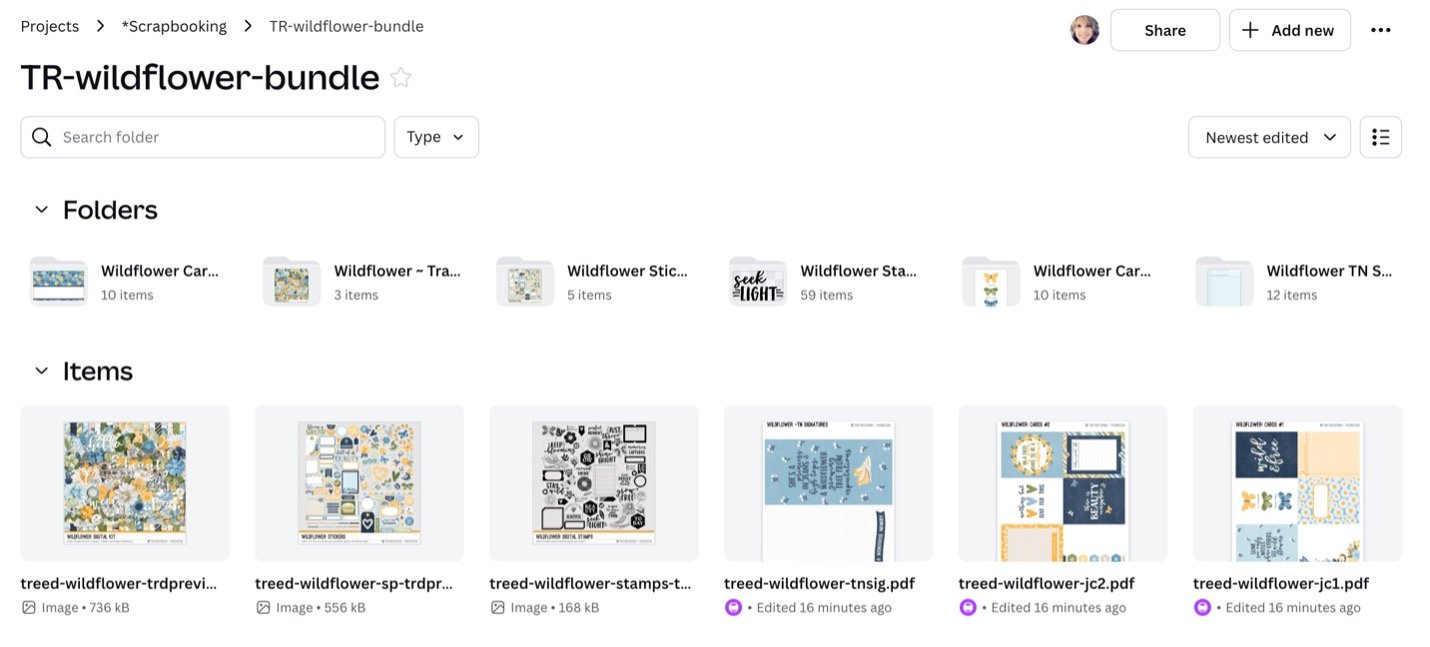
This is what my kit looks like when it is fully uploaded to Canva.
Project→ Scrapbooking → TR Wildflower Bundle
Now let’s create a layout!
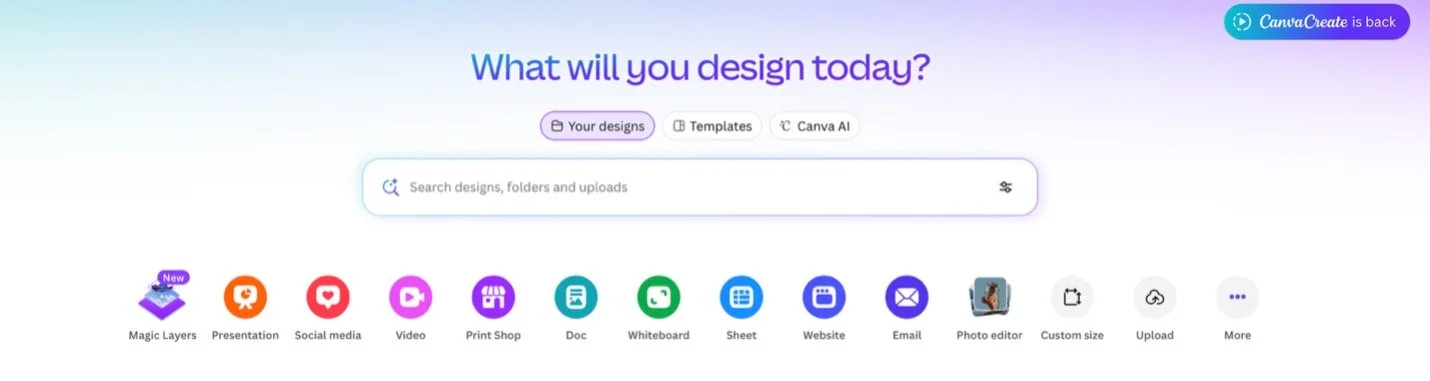
Click Create in the top left.

Click Custom size.
I do everything 12X12 even if I want it 6X6 or 8X8. I can either resize it, or print it smaller anyway. Change the units first to in or you will get a very small canvas.

On the left, click “Elements” and choose “Frames”. You can also choose “Grids” but I usually do “Frames”.
Now you need to build your canvas to look the way you would like. You can create the traditional Project A layouts, or change things up.
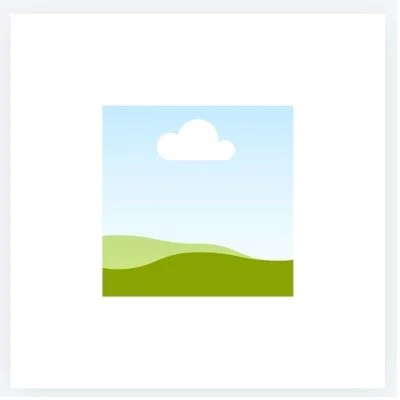
I start with the typical rectangular photo and then manipulate it the way I want.
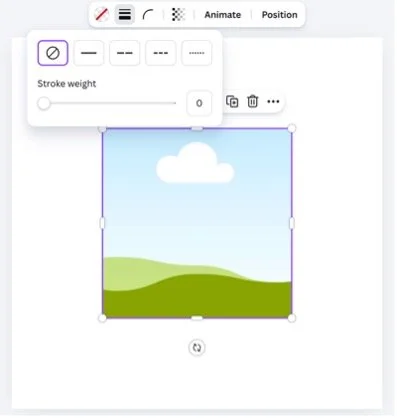
When the “photo pocket” is highlighted, I add a stroke of white around it. This is just preference.
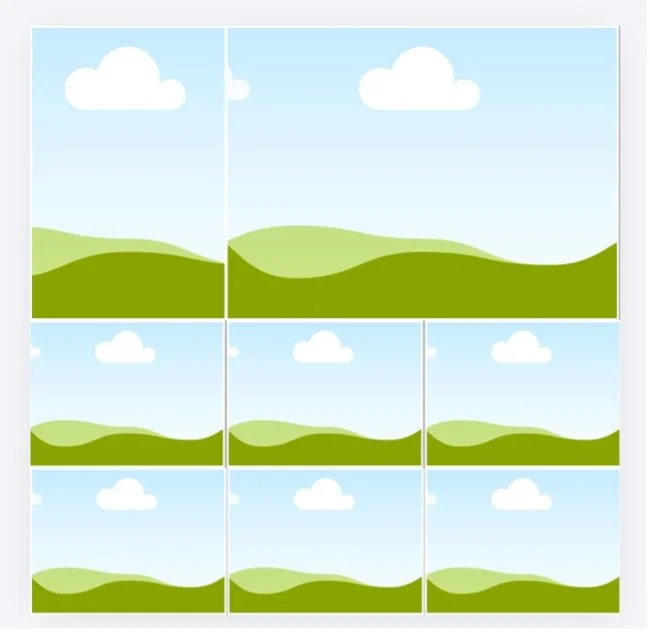
Thinking about the photos I had for this project, I knew I wanted a large photo “pocket”, this is the layout I built.
Now I’m going to add papers, cards, and photos to my layout. I will get the photos from dragging and dropping right over the top of this project from my photos app.
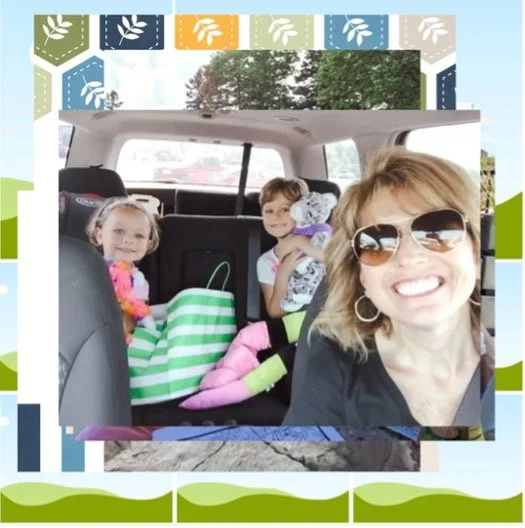
I will get the cards and papers from the Projects tab on the left. After selecting projects, I will navigate to the wildflower bundle.
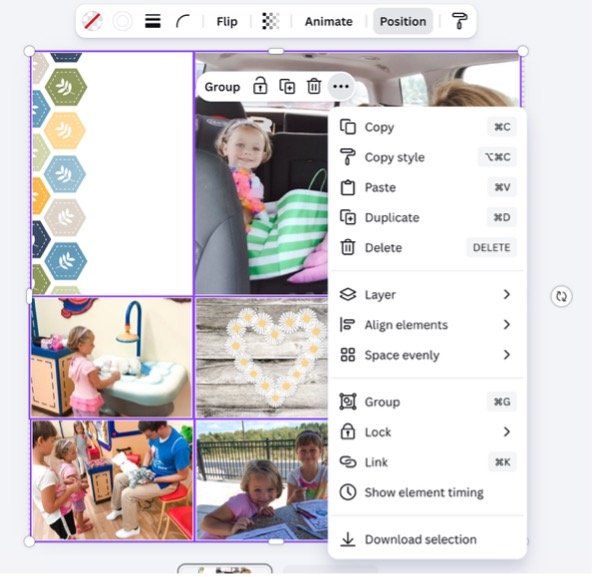
When I have everything where I want it, I like to drag my cursor over the whole thing and select lock. This will keep everything from moving when I start adding the embellishments.
The one piece Canva doesn’t do a great job with is shadows. This takes a bit of practice and some letting it go of left over Photoshop or Affinity options.
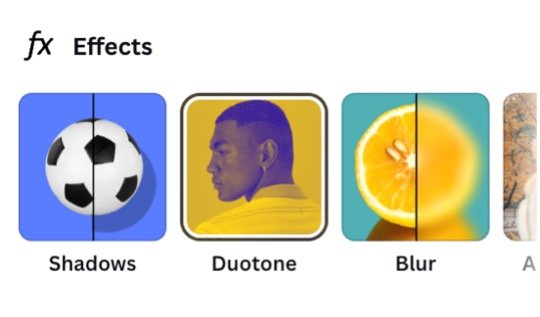
When you have an element selected, click edit, then fx Effects will open on the left. Choose Shadows and then play around with what you like.
I do drop shadow at 5 amount, 60 angle and change my color to grey.
Once you have one shadow done, you can click the … copy style and then click a new element and it will apply the same style to the new item.
I recolored the Memories Captured by clicking on it and then edit-Duotone
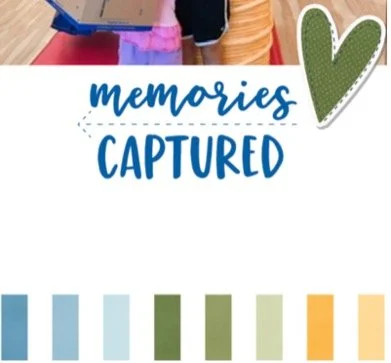
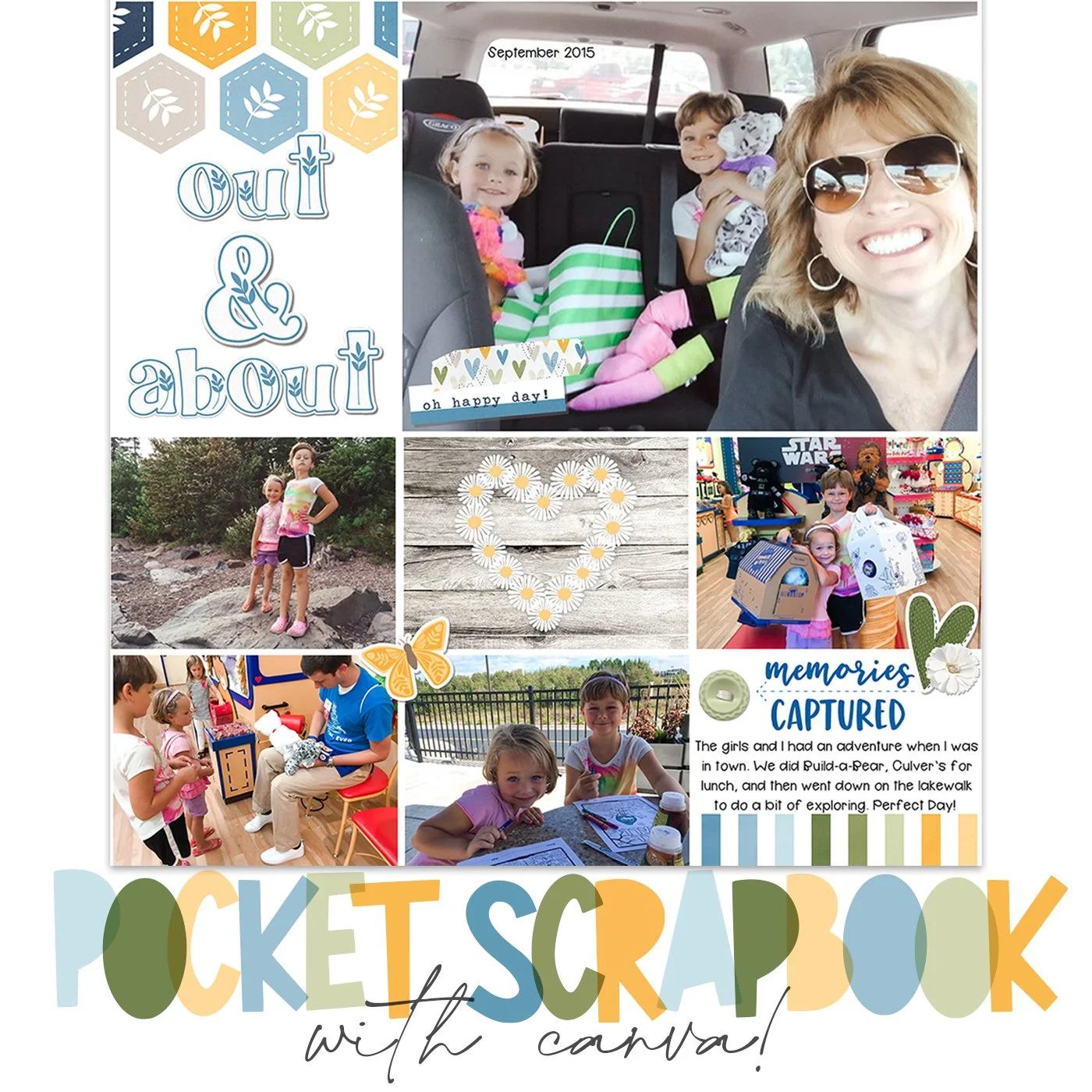
You can see in my final project, I ended up rotating the card in the top left to put the border on the top because my title was too wide.
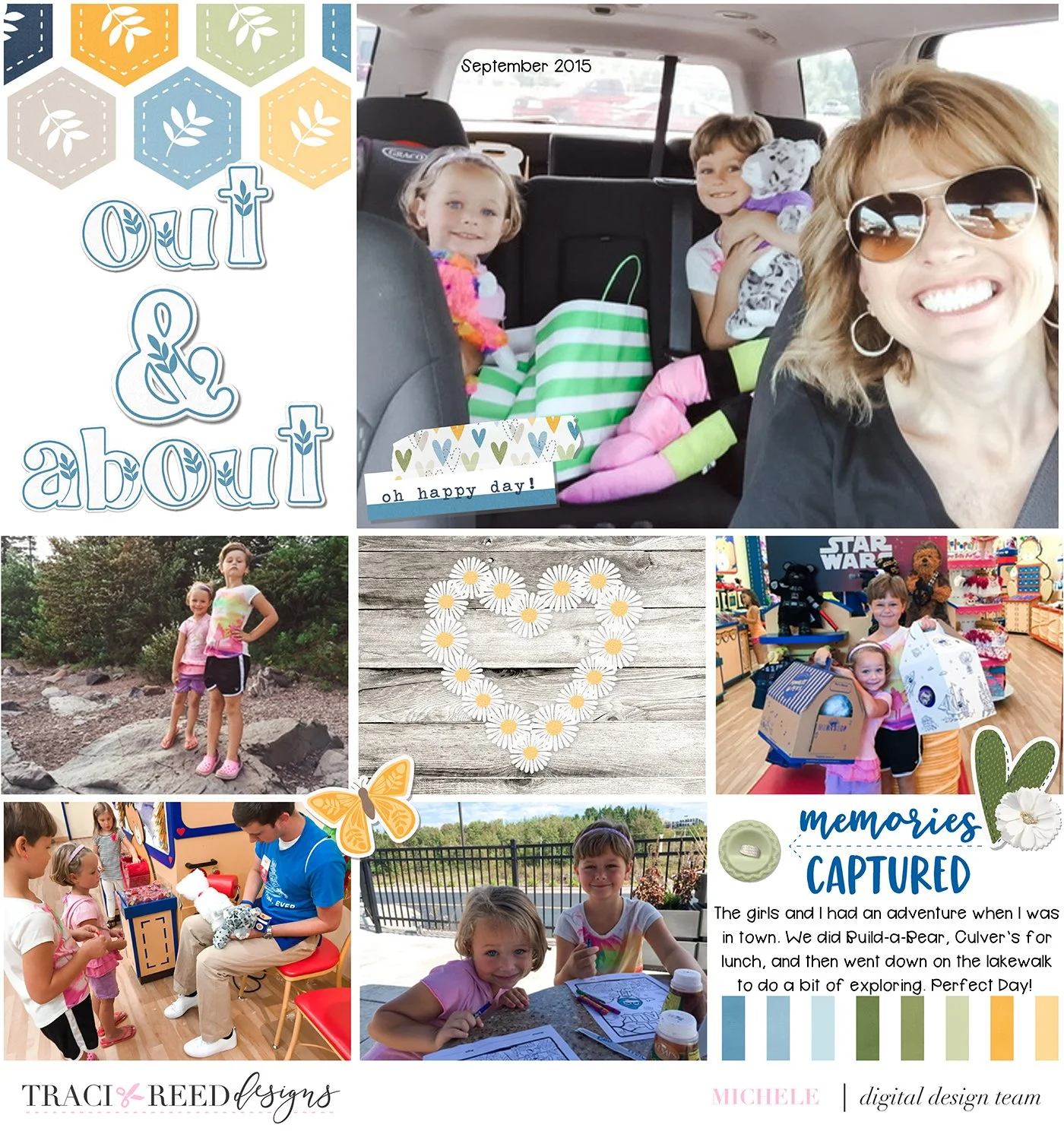
When done, click Share: Download-Jpeg. I always bump my quality up and file size up. After downloading and importing into your photos, double check that the file size isn’t pixelated for you. I’m not worried about photo storage, so I choose 3000X3000 and bump up the file size to 100. It is a pretty big file.
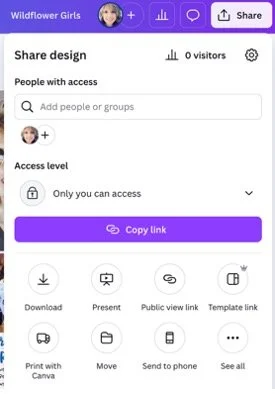
Just like we made for the kits, you may want to create a folder for your finished pages.
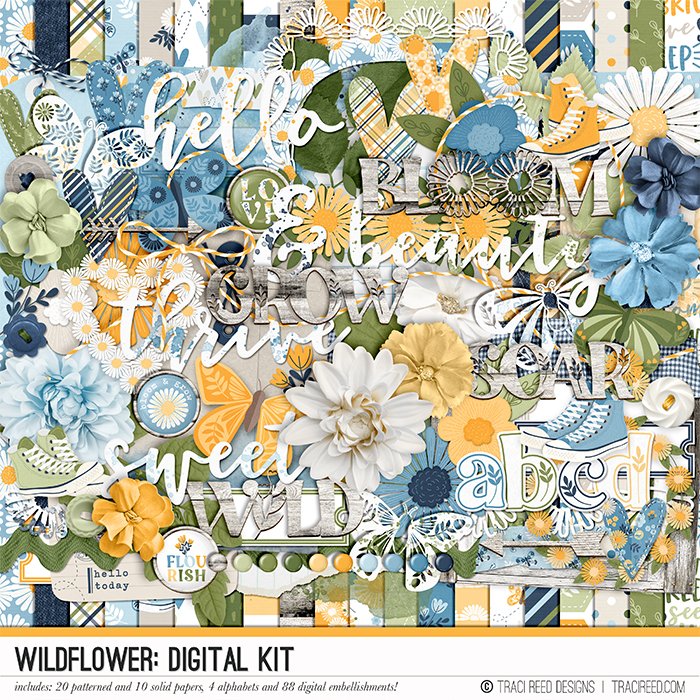
The Wildflower Collection


"She's a princess in jeans and high tops, a wildflower growing free from expectations."
Wildflower by Traci Reed celebrates all those who are a little wild and free, who spin in circles in fields of wildflowers, with grassy knees and unlaced sneakers.
In beautiful shades of yellow, green and blue, with not a pink in sight, Wildflower is perfect for all those not-so-girly girls and boys alike!
See more example layouts and the collection unboxing HERE!
BUNDLE INCLUDES
Wildflower Digital Kit, Cards #1 & #2, TN Signatures and Stickers!
BUNDLE DOES NOT INCLUDE:
Patterned Cards, TN Papers, Stamps, or Cut Files!