Organizing Your Camera Roll for Scrapping on the Go!
I’m finding that most of my scrapbooking happens on the go—while riding in the car, sitting at medical appointments with my mom, or waiting in the airport. While I love creating detailed, fussy pages, sometimes I skip straight to quick and easy app-based layouts.
Scrapping on your phone definitely comes with challenges, but here are a few tips that help make the process easier for me. I’m an iPhone user, but the process should be very similar on Android phones too.
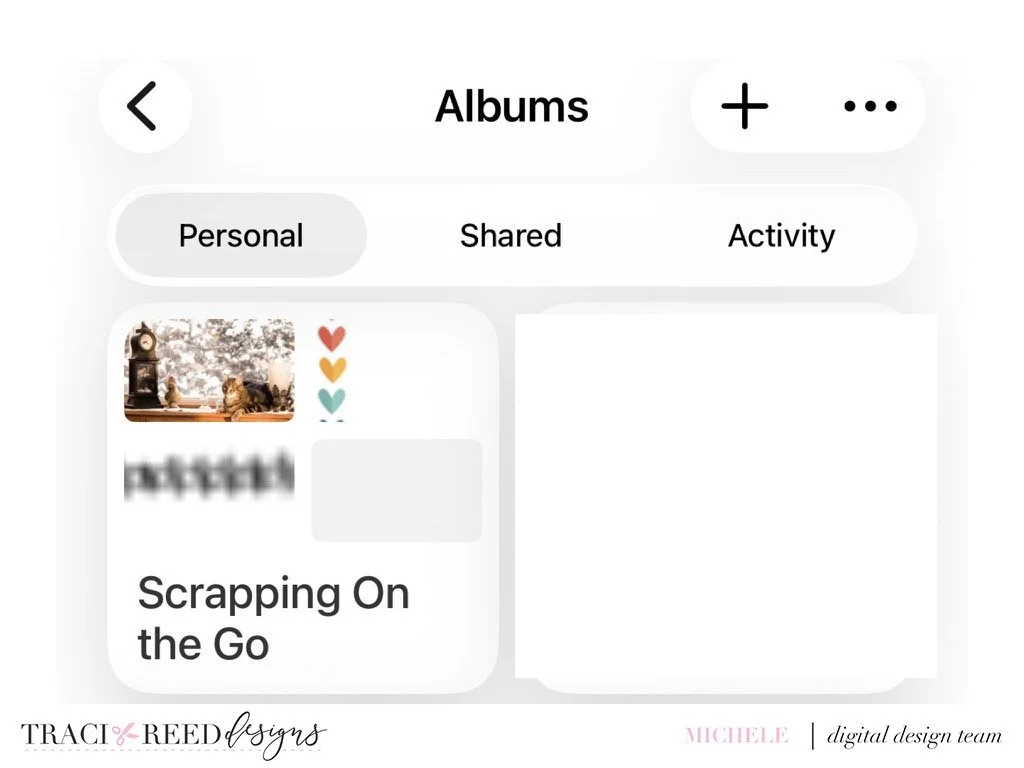
I keep a folder on my phone for each project I’m working on, and inside that folder I create albums. One album holds the photos I plan to scrapbook next, and another holds any kit elements I want to use. In this example, I’m using pieces from the Our Story Matters kit. I had looked through the kit in my files and clicked the “share to photos” option on each item I was interested in. This process really helps me not have to hunt for relevant items when I go to create the page. I also keep a stitching album that stays in the folder all the time because I often use stitching to anchor embellishments.
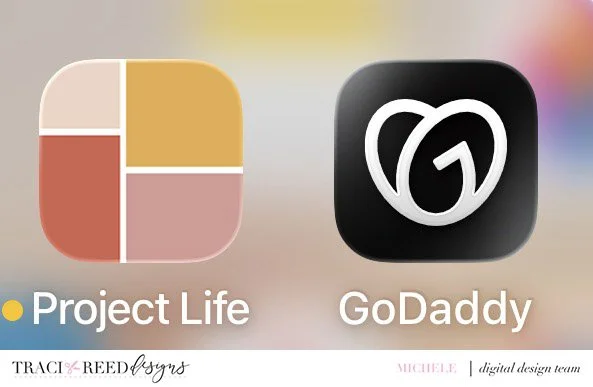
I use two apps for scrapping on the go. First, I create my pocket page in the Project Life app. For this layout, I’m using the free Template Number 1.
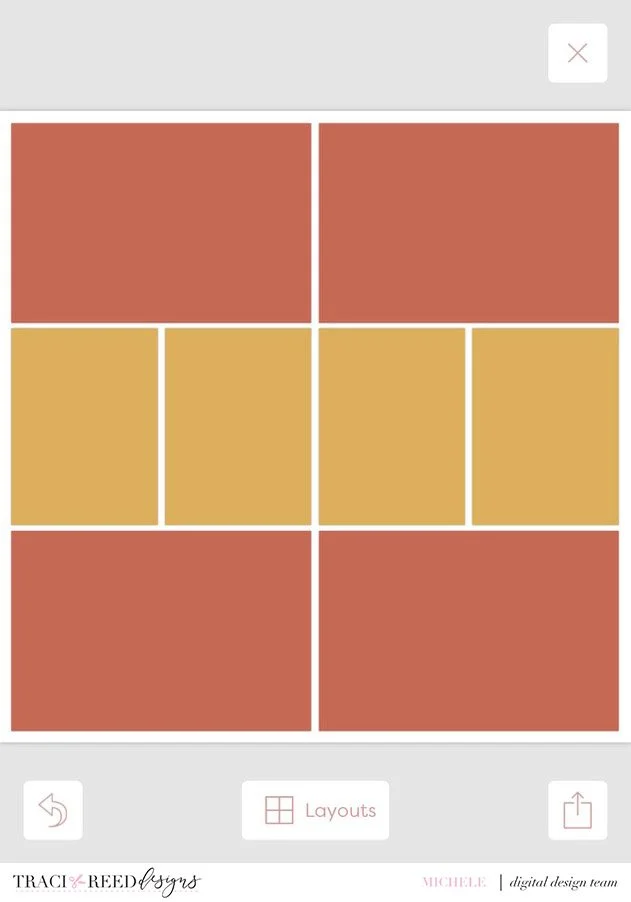
When it’s time to add photos, I simply navigate to my folder and insert the photos and cards I want to use. I usually add journaling directly in the app using the Free Form Text add-on feature. If you don’t have that feature, you can easily add journaling in the next app instead.
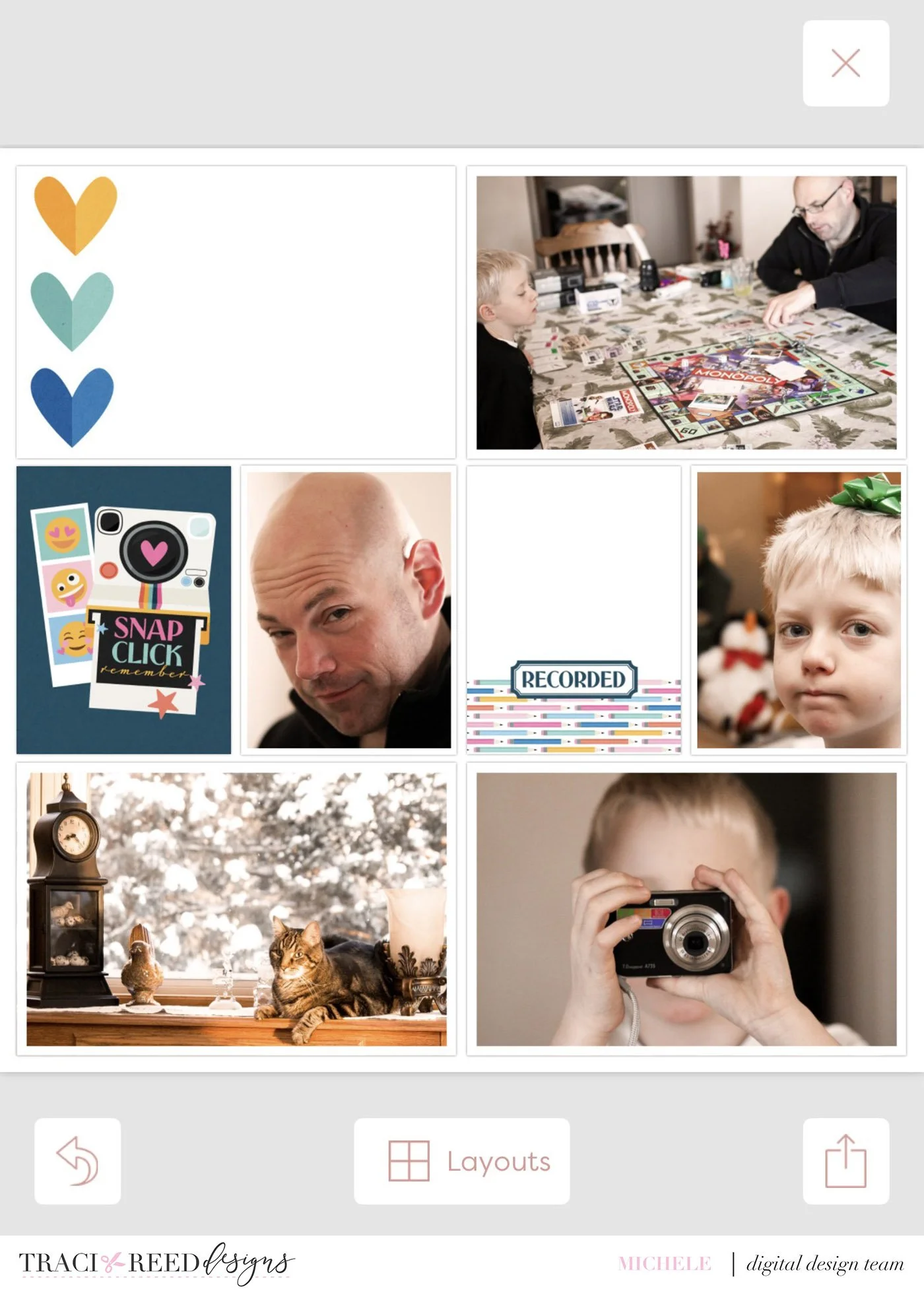
Once the layout is finished, I export it to my camera roll and open the GoDaddy Studio app. I only use the free version. A quick note: this app has changed names several times over the years (it was previously called Over and r and Studio), so you may already have it installed under one of many names.
I start with a square canvas, import the layout from my camera roll, and then begin adding embellishments from my kit photos folder using the image icon in the bottom left. The toolbar at the bottom lets you adjust shadows, rotation, size, and many other design elements. You can see all the layers, I end up with as I add kit components.
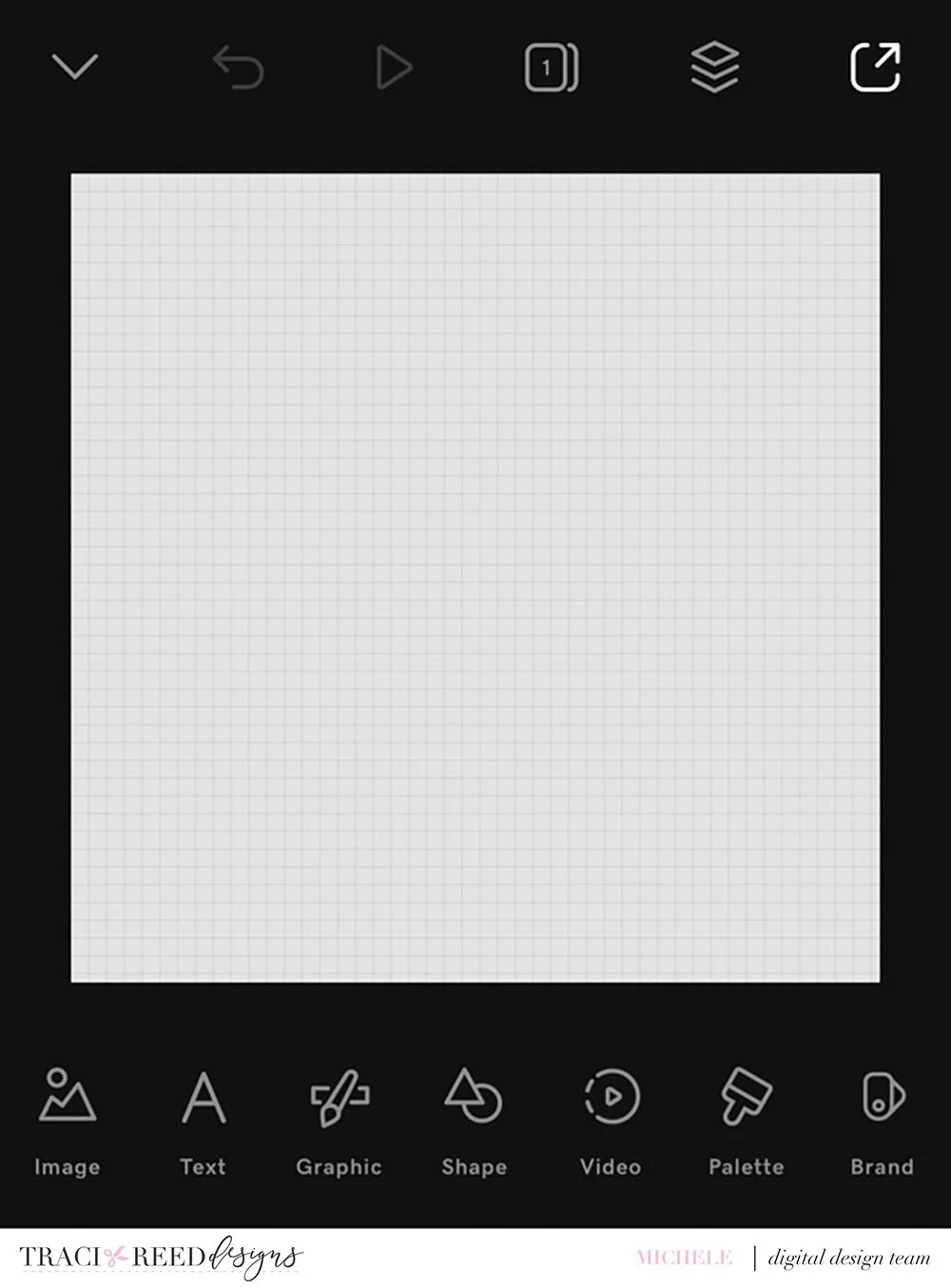
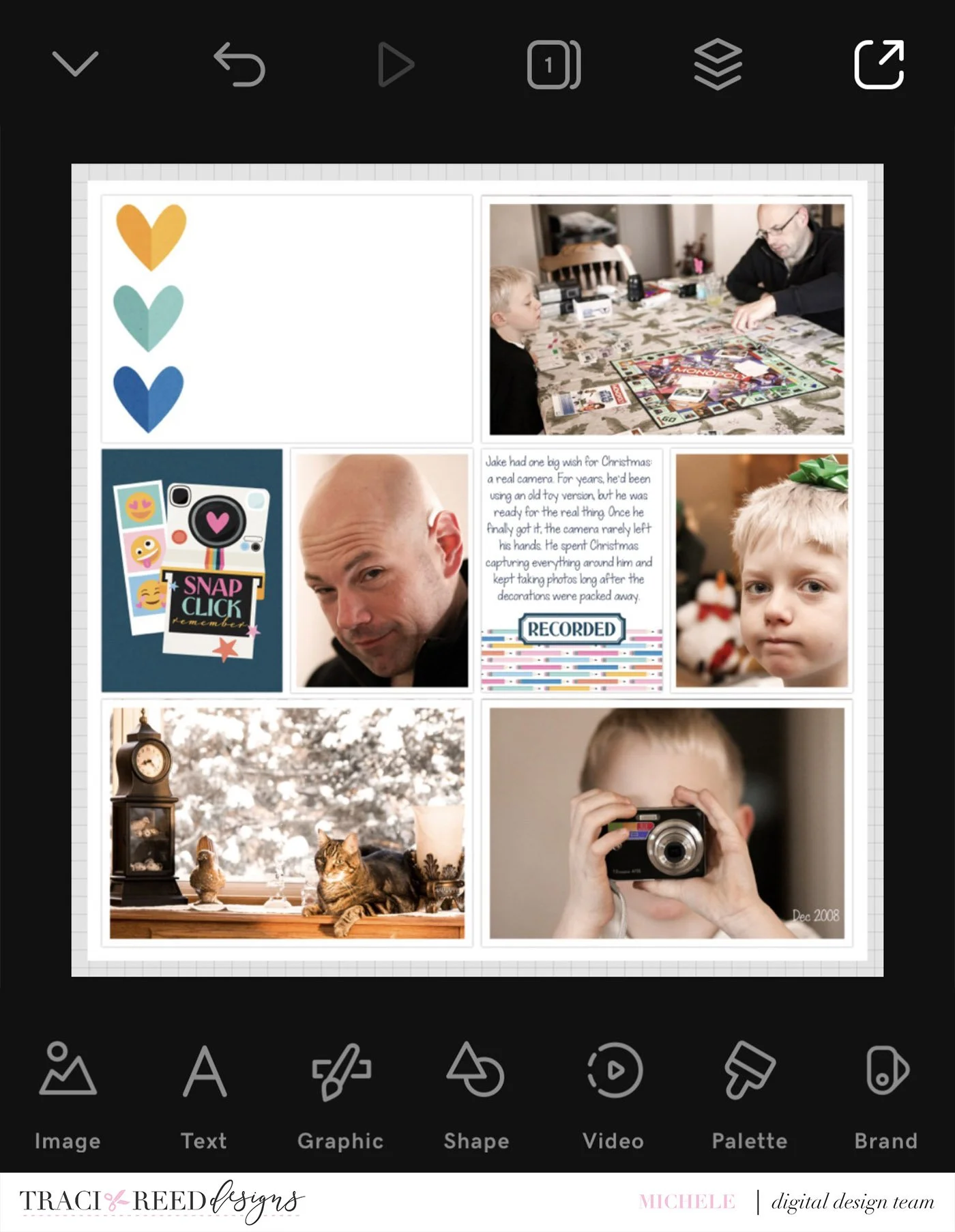
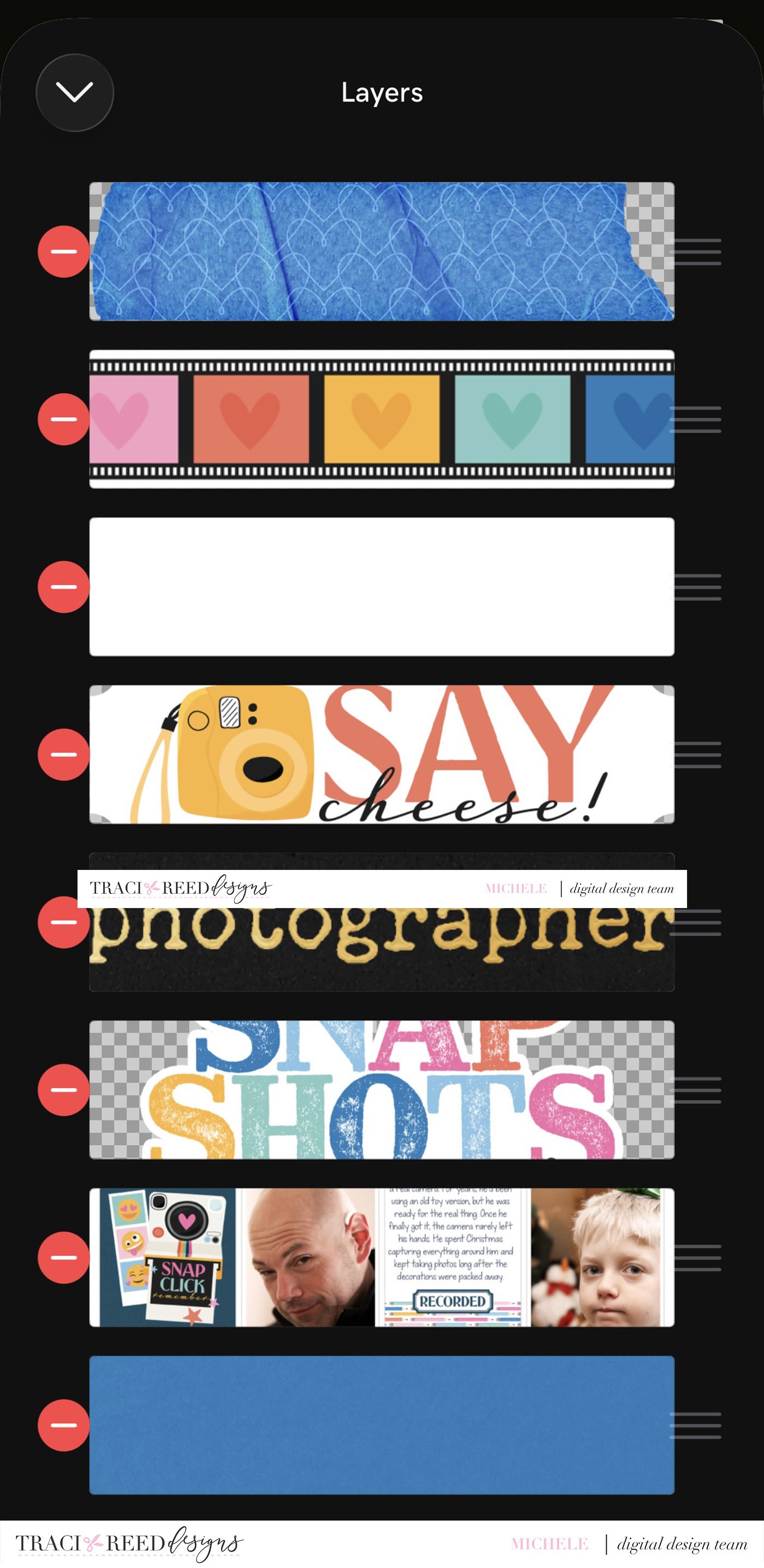
For me, having the kit pieces I want to use saved directly to my camera roll makes everything much easier to find. That said, both apps also allow you to navigate to your files if you’d rather not save items to your camera roll.
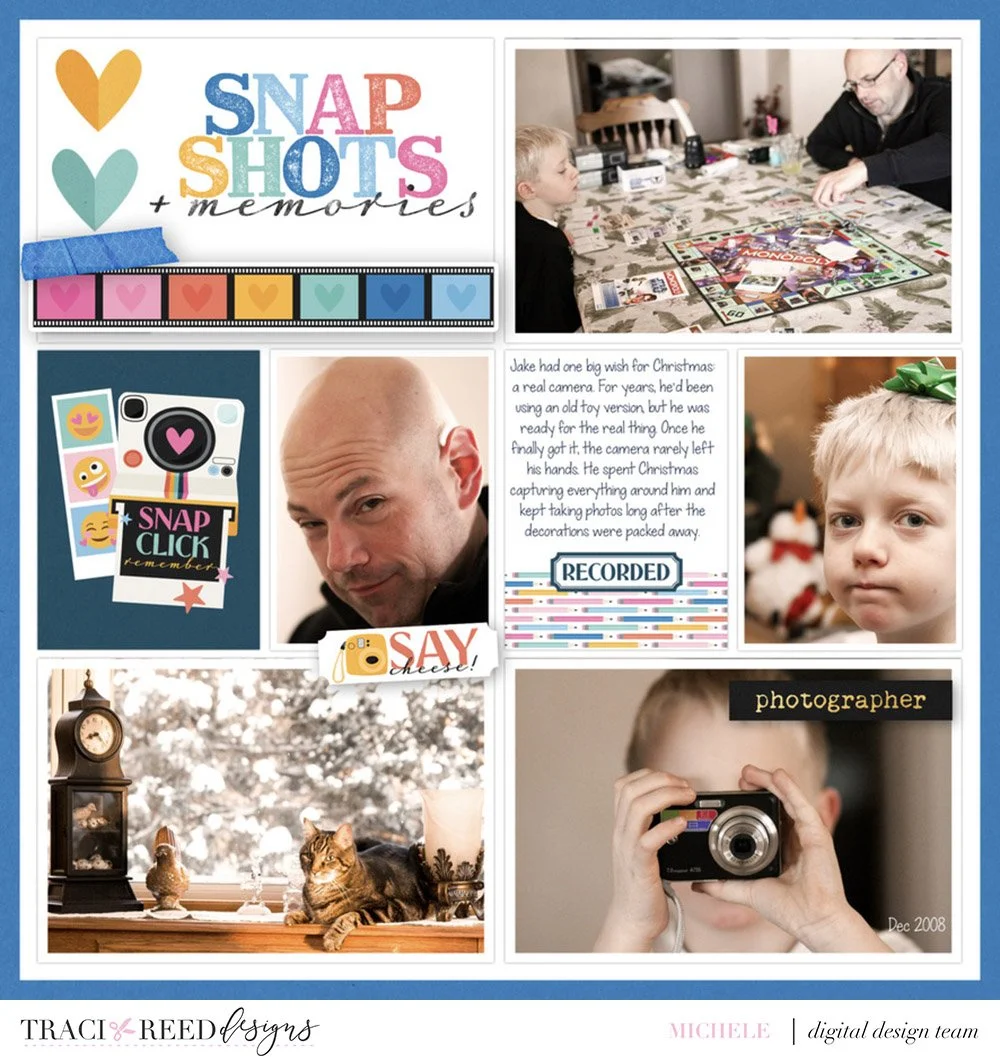
If scrapping on the go feels frustrating, try prepping your photos and kit elements ahead of time in your photos app and see
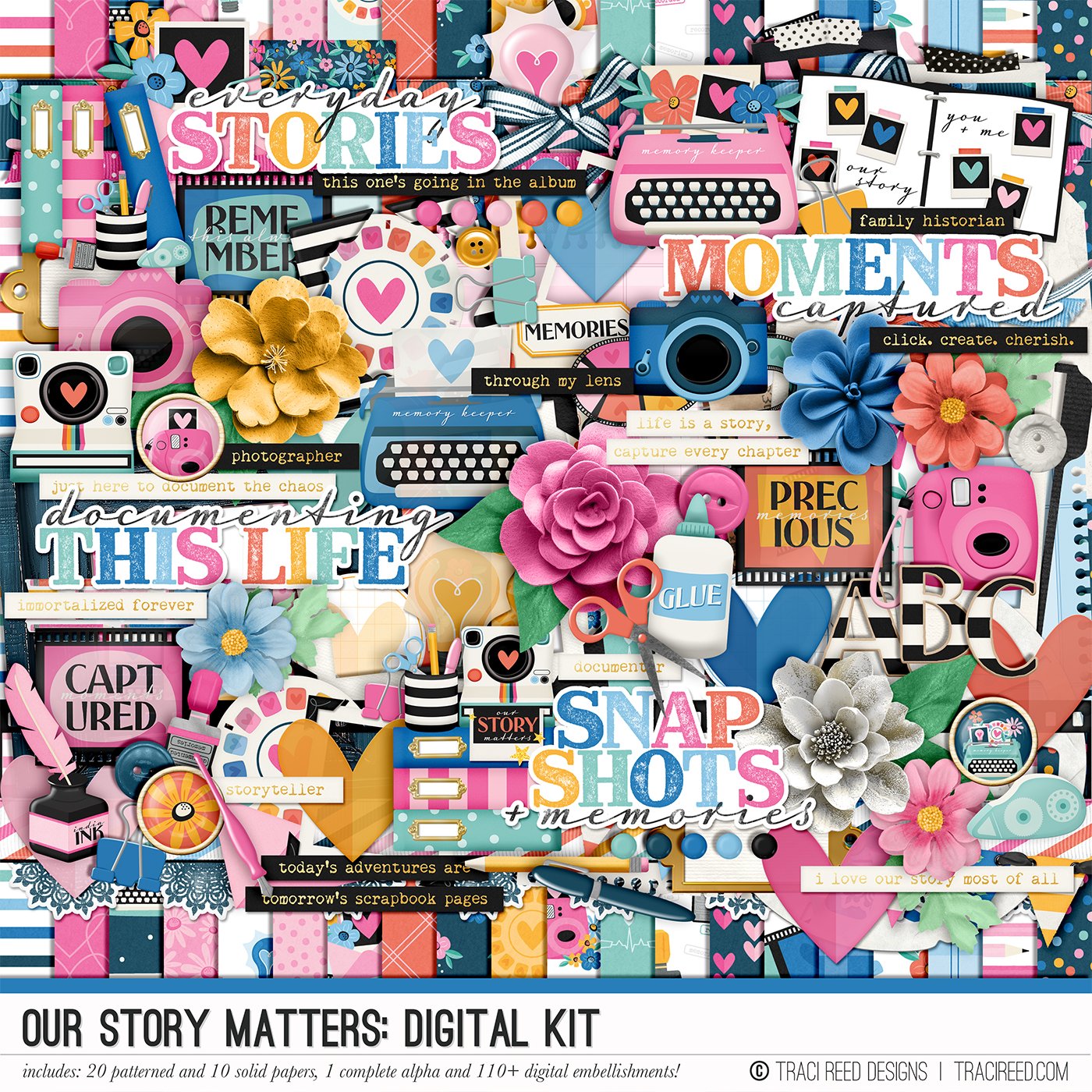
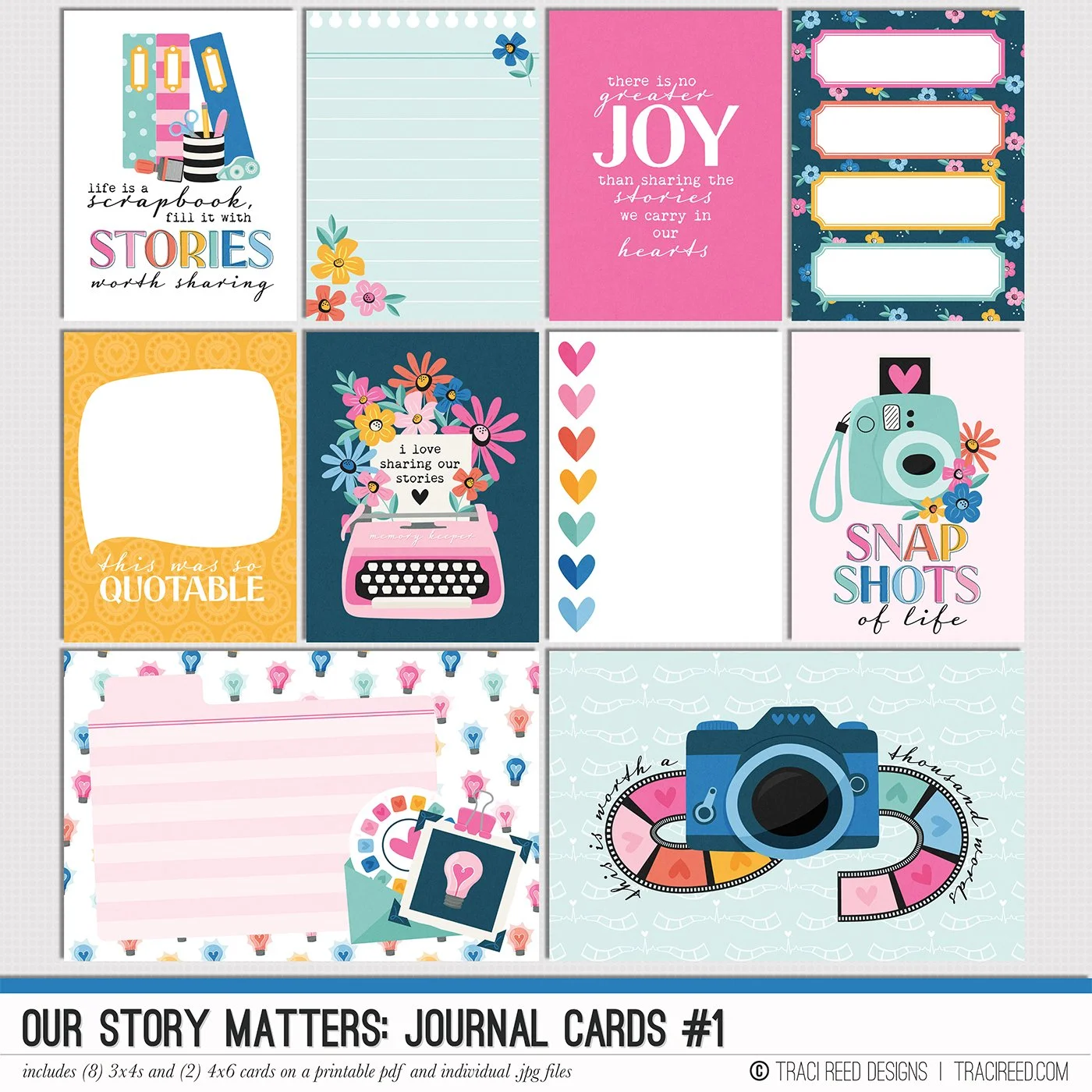


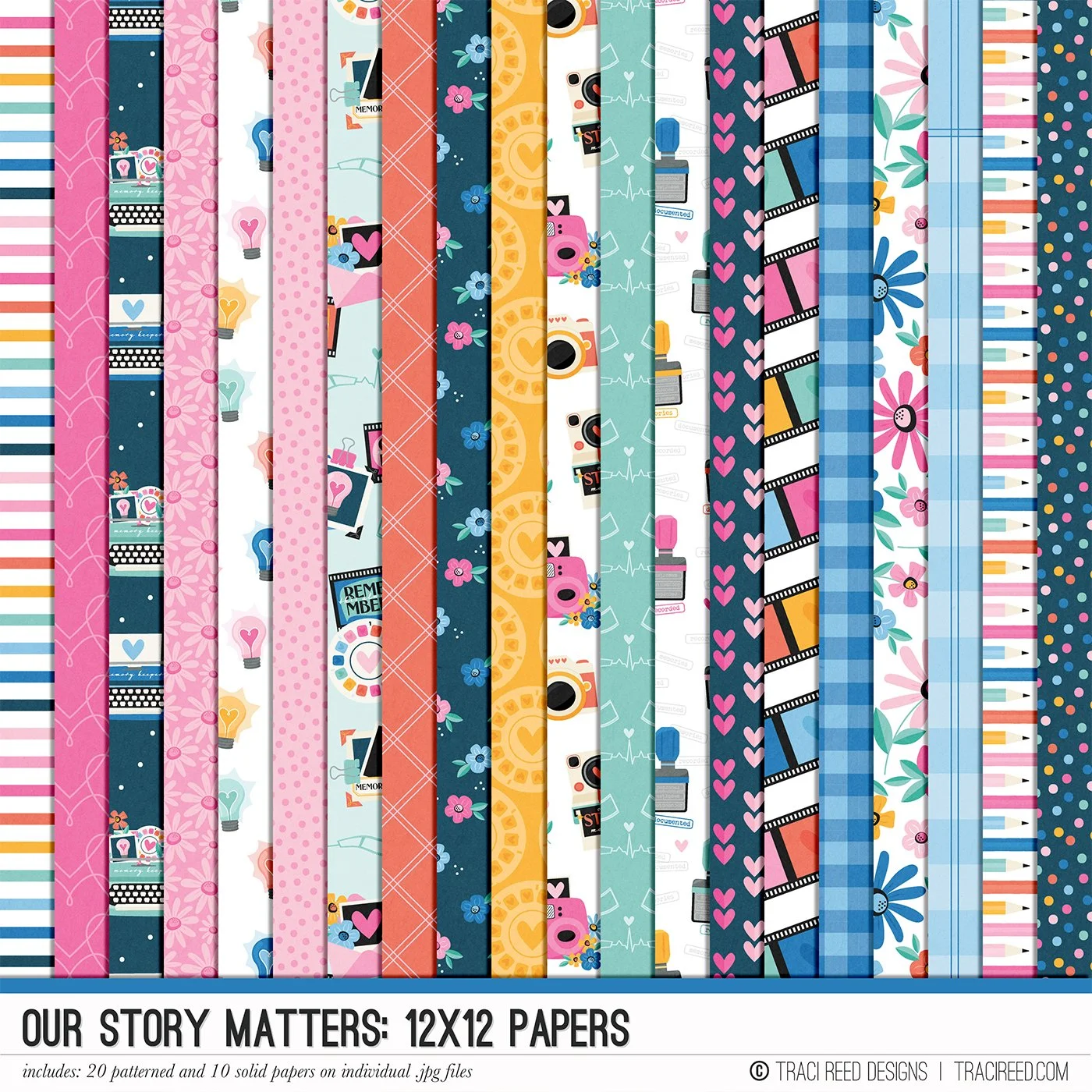
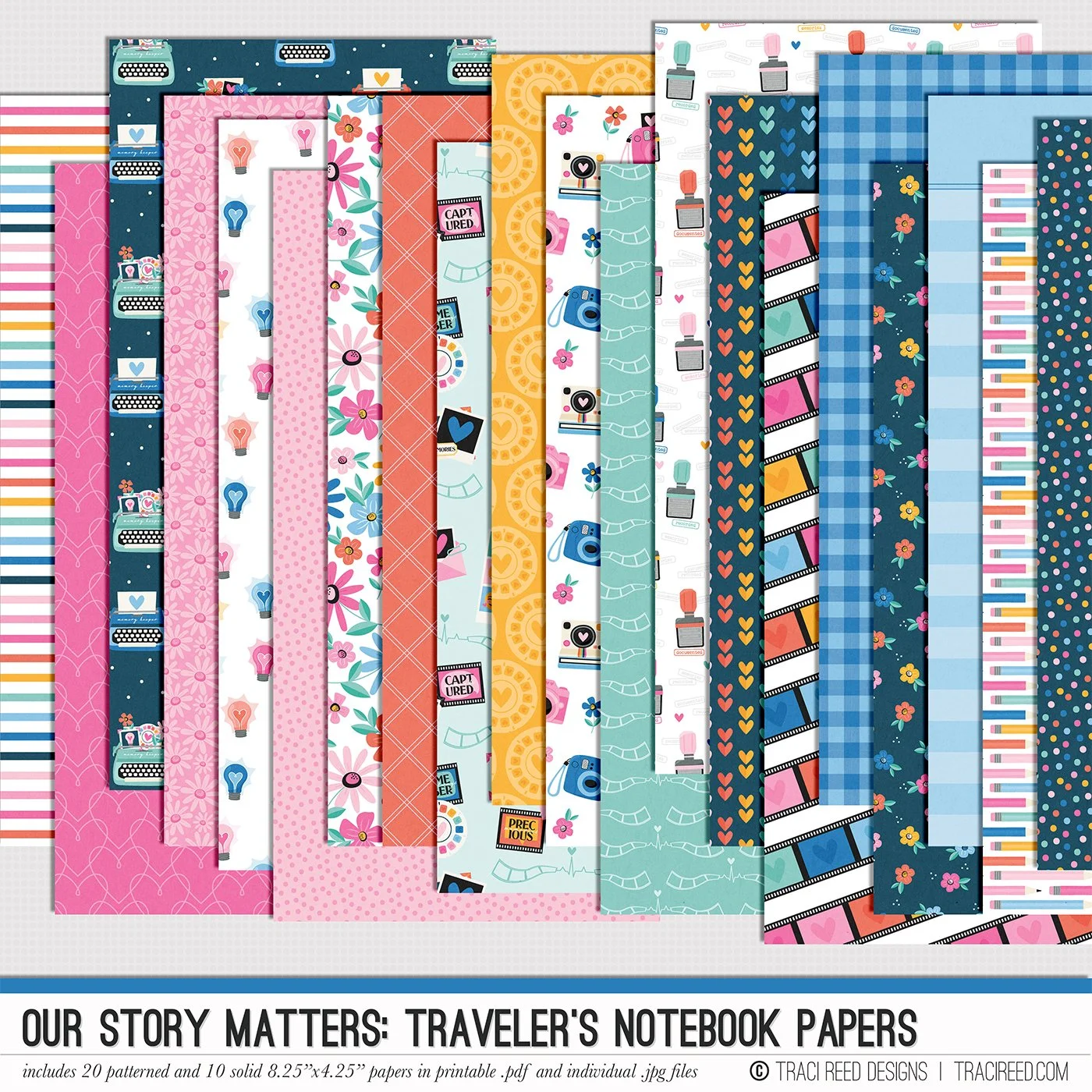
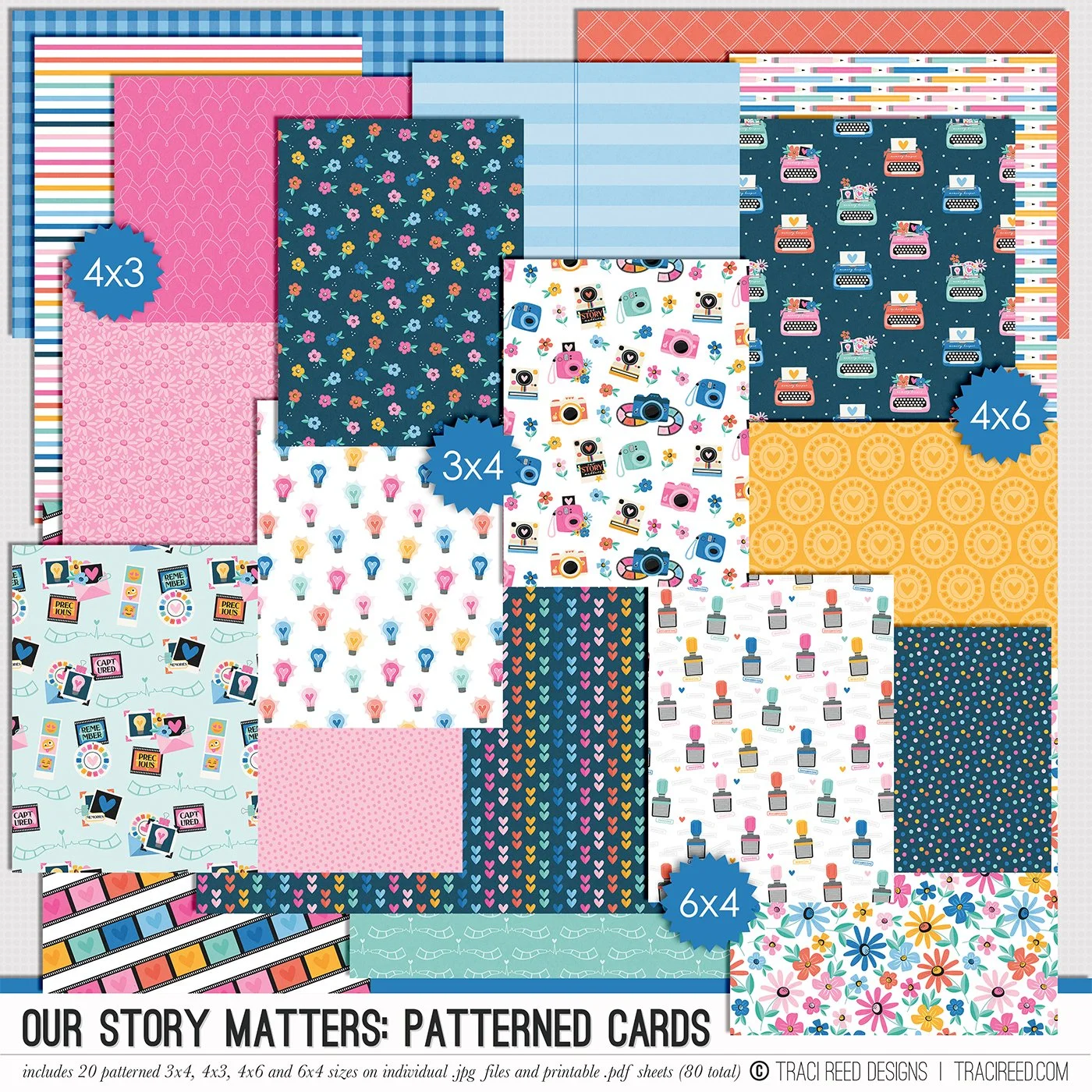
Your stories deserve to be told, and the Our Story Matters collection is here to help you do just that. A follow-up to the much-loved My Story Matters, this collection is all about celebrating the ways we document our lives—through words, photos, and creativity. With a mix of hand-drawn icons, meaningful phrases, and a warm, inviting color palette, this collection is perfect for capturing everything from everyday moments to the stories that shape who we are.
So grab your favorite supplies, get cozy, and start telling your story—because it matters more than you know.
Check out the Our Story Matters Blog Post to see example layouts and the unboxing!
BUNDLE INCLUDES:
Our Story Matters Digital Kit, Journal Cards #1 and #2, Stickers and Bonus Stickers
BUNDLE DOES NOT INCLUDE:
TN Papers or Patterned Cards